


목차(클릭하세요)

워크플로우는 특정 작업을 수행하기 위한 단계별 지침서
 양파고 제작 PPT자동화 깃허브
1. 안티그래비티+PPT자동화를 추천하는 이유
•
현재 PPT자동화로 노트북 LM과 gemini를 사용하는 경우가 많은데 완벽하지 않고, 수정이 더 번거로울때가 있음
1-1. 노트북LM에서의 슬라이드 작성시 문제점
 생성된 슬라이드 초안을 내부 UI에서 직접 수정하기 어려움
•
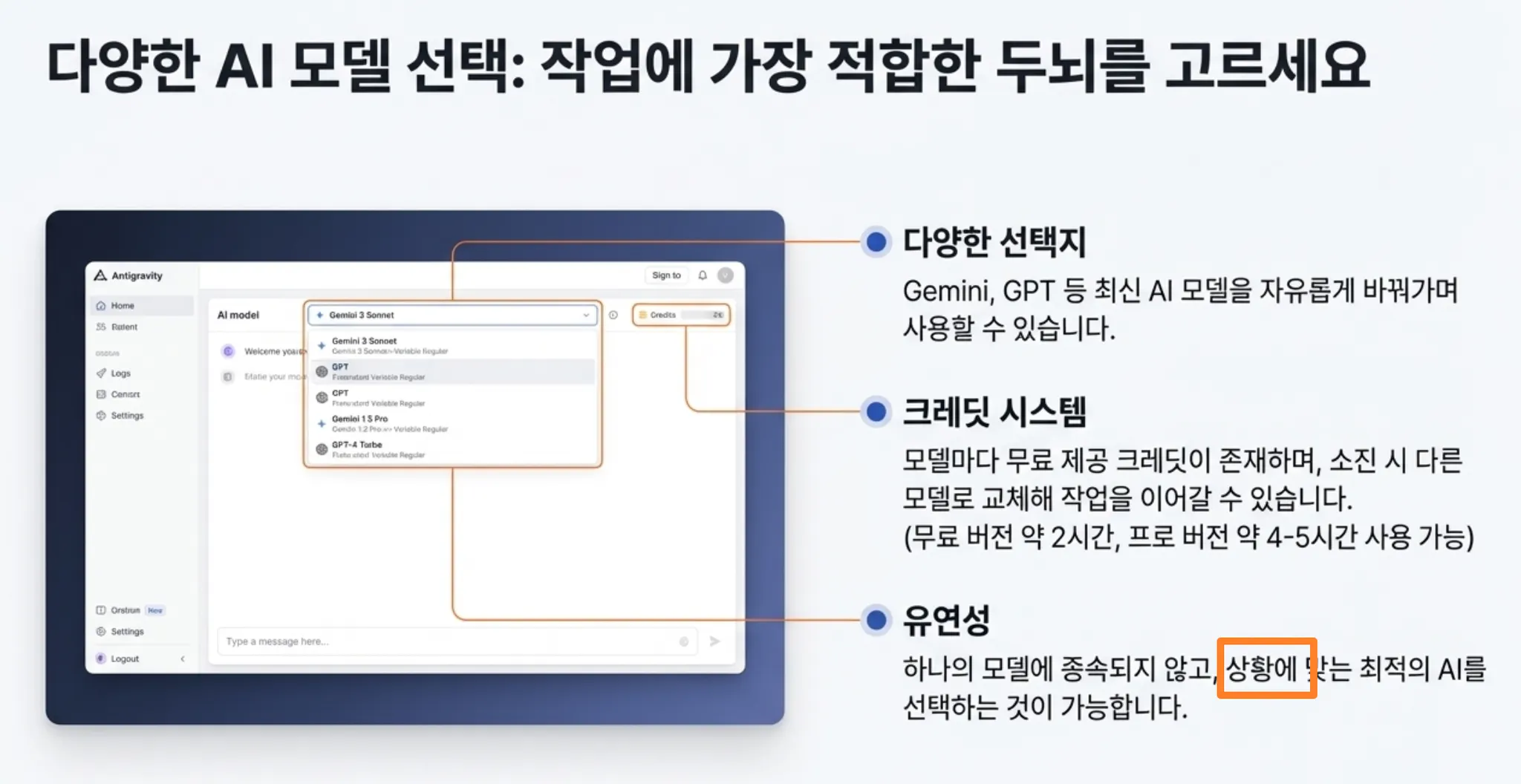
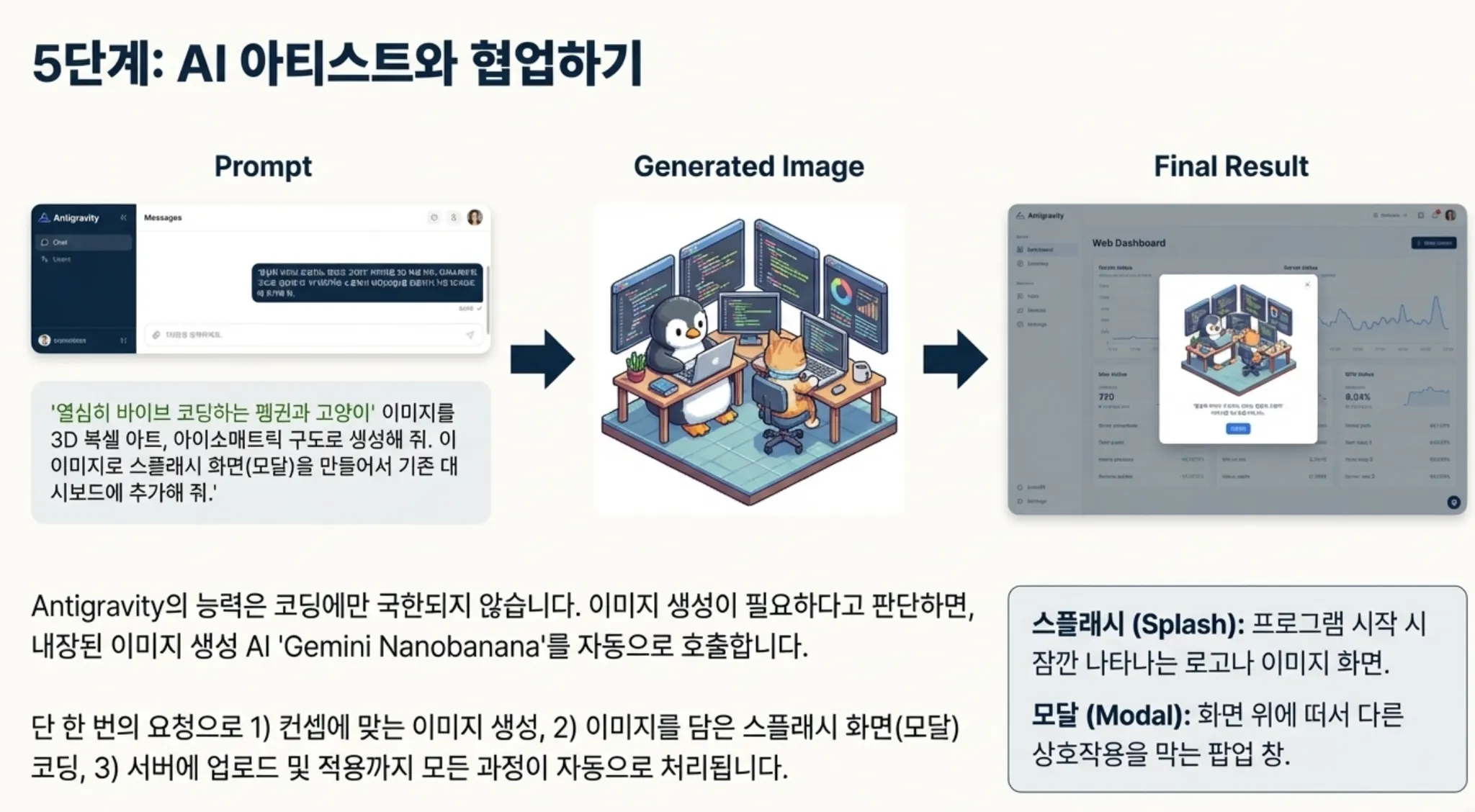
무엇보다 중간중간 깨지는 슬라이드가 있고, 한글표현이 100% 완벽하지 않음
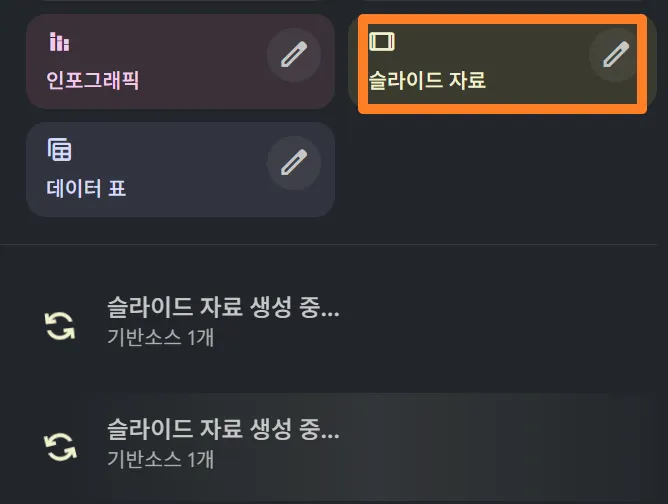
[결과물의 문제점]
•
묘하게 깨져있는 한글
•
맥락과 맞지 않는 이미지 생성
•
1-2.Sam을 이용한 방법도 있긴한데 이것도100%는 아님
 SAM 기반 오브젝트 분리
•
Segment Anything Model(SAM)을 활용하여 이미지 내 특정 객체를 추출하여 변경할 수 있으나 완벽하지 않음
1.
분리 정확도 저하: 복잡한 배경이나 객체 간 경계가 모호한 경우 모델이 오브젝트를 완벽하게 식별하지 못함.
2.
경계면 노이즈(Artifacts): 추출된 객체의 외곽선이 매끄럽지 않고 '지저분하게' 남는 에일리어싱 현상이 빈번함.
3.
또한번의 후처리 필요: 부정확한 마스크를 수정하기 위해 추가적인 수동 리터칭 작업이 강요됨.

2. 안티그래비티의 workflow기능
•
워크플로우를 사용하면 서비스 배포나 PR 코멘트 응답과 같은 반복적인 작업 세트를 통해 에이전트를 안내하는 일련의 단계를 정의할 수 있음


2-1. 워크 플로우란?
•
워크플로우는 특정 작업을 수행하기 위한 단계별 지침서
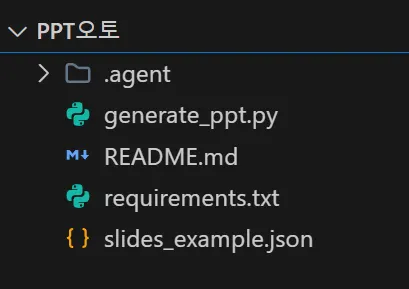
 .agent/workflows 디렉토리에 마크다운(.md) 파일 형식으로 저장되며, 반복적인 작업을 체계적으로 수행할 수 있게 도와줌
.agent/workflows 디렉토리에 마크다운(.md) 파일 형식으로 저장되며, 반복적인 작업을 체계적으로 수행할 수 있게 도와줌[규칙과 워크플로우의 차이]
•
규칙(Rules)이 프롬프트 수준에서 지속적이고 재사용 가능한 컨텍스트를 제공하여 모델에 지침을 제공하는 반면,
•
워크플로우(Workflows)는 궤적(trajectory) 수준에서 구조화된 단계 또는 프롬프트 순서를 제공하여 상호 연결된 일련의 작업이나 행동을 통해 모델을 안내
[워크플로우 파일 구조]
구성 요소:
---
description: [짧은 제목/설명]
---
[구체적인 단계별 지침]
Plain Text
복사
1.
YAML Frontmatter ( - - -로 감싸진 부분)
•
description: 워크플로우의 간단한 설명 (예: "PPT 자동 생성하기")
2.
본문 (Markdown)
•
단계별 실행 지침
•
명령어, 설명, 주의사항 등
3.
 워크플로우의 특별한 기능: 자동 실행 기능 (Turbo Mode)
•
특별한 주석을 사용하여 자동 실행을 설정할 수 있음
3-1. // turbo - 단일 단계 자동 실행
특정 단계만 자동으로 실행하고 싶을 때 사용: 아래 예시는 2번 단계만 자동실행됨
1. 프로젝트 디렉토리로 이동
// turbo
2. 필요한 패키지 설치
Plain Text
복사
3-2. // turbo-all - 전체 자동 실행
모든 명령어 단계를 자동으로 실행하고 싶을 때 사용: 아래 예시는 모든 단계가 자동 실행
---
description:PPT 자동 생성하기
---
// turbo-all
1. Python 가상환경 활성화
2. 필요한 라이브러리 설치
3. PPT 생성 스크립트 실행
Plain Text
복사
2-2. 워크 플로우 제작 과정
1.
에디터의 에이전트 패널 상단에 있는 "..." 드롭다운을 통해 사용자 지정(Customizations) 패널 실행
2.
워크플로우(Workflows) 패널로 이동
3.
+ Global 버튼을 클릭하여 모든 워크스페이스에서 액세스할 수 있는 새 전역 워크플로우를 만들거나, + Workspace 버튼을 클릭하여 현재 워크스페이스에만 적용되는 워크플로우를 만듦
4.
워크플로우를 실행하려면 에이전트에서 /workflow-name 명령을 사용하여 호출
a.
워크플로우 내에서 다른 워크플로우를 호출할 수도 있음
b.
예를 들어, /workflow-1에 "Call /workflow-2" 및 "Call /workflow-3"와 같은 지침을 포함할 수 있음
5.
호출 시 에이전트는 워크플로우에 정의된 각 단계를 순차적으로 처리하여 지정된 대로 작업을 수행하거나 응답을 생성
•
워크플로우는 마크다운 파일로 저장되며 제목, 설명, 그리고 에이전트가 따라야 할 구체적인 지침이 담긴 일련의 단계를 포함
2-3. 직접만들어보기
•
뭐든 안티그래비티에서 물어가면서 시작할 수 있음
•
[예시 프롬프트]
PPT를 생성해주는 워크플로우를 만들꺼야. 워크 플로우 만드는 방법을 상세히 설명해줘
Plain Text
복사
•
안티그래비티에서는 모든 작업을 AGent에게 자동화 할 수 있음
•
아래 프롬프트를 넣으면 필요한 워크플로우 기본 파일이 셋팅됨
---
name: create_academic_ppt
description: 학술 그림 스타일 이미지를 포함하는 PowerPoint 프레젠테이션을 생성합니다. /create_academic_ppt [주제]
---
1. **주제 이해**:
* 슬래시 명령 인수에 제공된 주제를 식별합니다.
* 주제가 제공되지 않은 경우 사용자에게 "어떤 주제에 대한 프레젠테이션을 만들고 싶으신가요?"라고 묻고 응답을 기다립니다.
2. **콘텐츠 생성 (JSON)**:
* 주제를 기반으로 5개의 슬라이드에 대한 JSON 구조를 생성합니다.
* 각 슬라이드는 다음을 포함해야 합니다:
* `title`: 전문적인 제목.
* `content`: 주요 글머리 기호.
* `image_prompt`: AI 이미지 생성기를 위한 상세 설명. **스타일**: "학술 그림, IEEE/CVPR 논문 스타일, 개략도, 깔끔한 선, 흰색 배경".
* 이 JSON 콘텐츠를 `slides.json`이라는 파일에 저장합니다.
3. **PPT 생성**:
* 생성된 JSON 파일을 사용하여 파이썬 스크립트를 실행합니다.
* 명령어: `python generate_ppt.py`
4. **정리**:
* 출력 파일 이름 (`nano_banana_presentation.pptx`)을 사용자에게 알려줍니다.
이걸 참고해서 만들어봐
Plain Text
복사
[결과물]
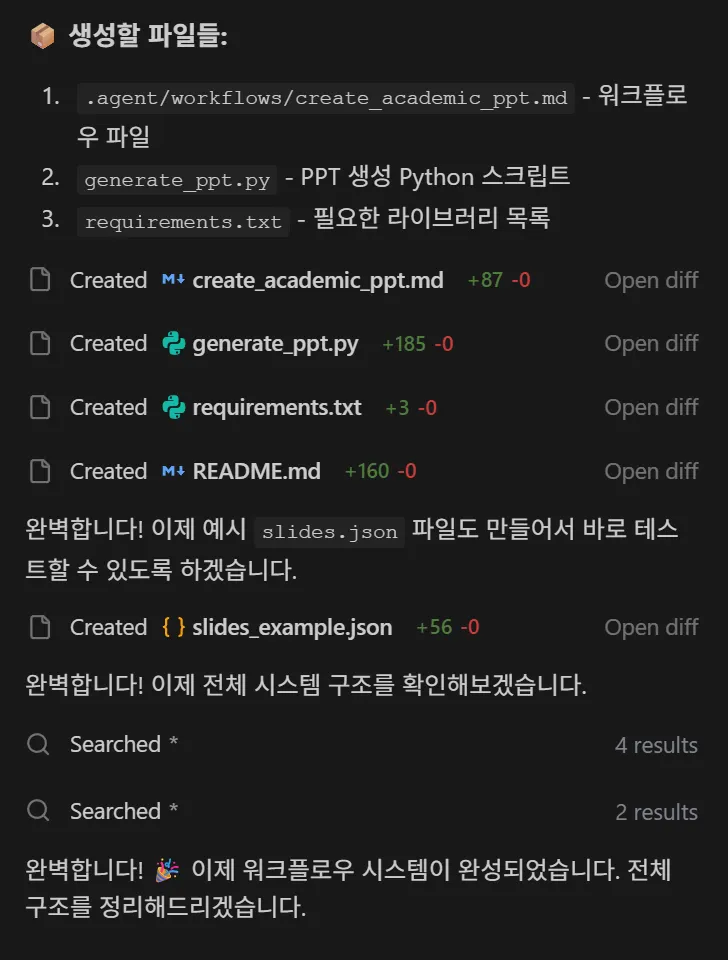
2-4. 내가 만든 워크플로우 실행하기
•
친절하게도 안티그래비티에이전트가 실행방법까지 정리해서 알려줌
•
생성된 워크 플로우는 여기서 확인 가능
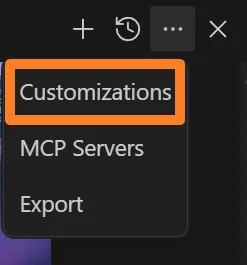
•
‘global’단위의 workflow를 만들수도 있고,
•
‘workspace’단위의 workflow를 만들수도 있음
아무래도 ‘workspace’단위의 workflow를 권장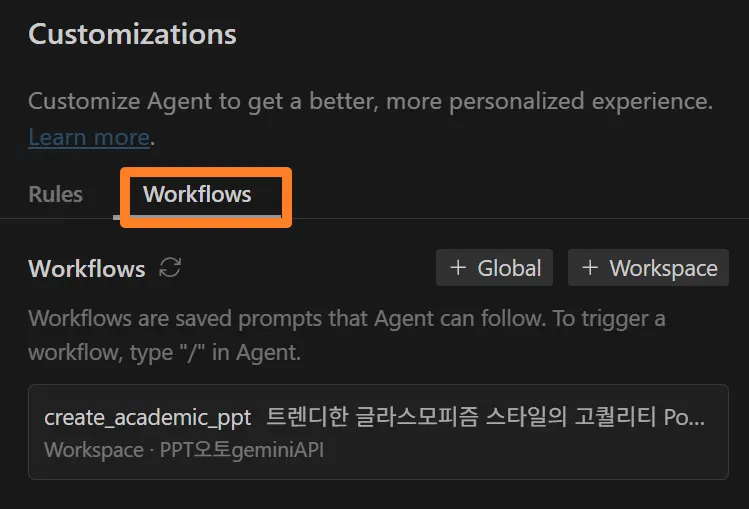
[방법 1] 워크플로우 명령어 사용 (권장)
AI 에이전트에게 다음과 같이 요청:
/create_academic_ppt 양자 컴퓨팅
Bash
복사
또는 주제 없이:
/create_academic_ppt
Bash
복사
→ AI가 자동으로:
1.
주제 확인
2.
slides.json 생성
3.
이미지 생성 ( 도구 사용)
generate_image
Bash
복사
4.
python generate_ppt.py 자동 실행 (// turbo)
5.
결과 파일 확인
[방법 2] 수동 실행
# 1. 라이브러리 설치
pipinstall-rrequirements.txt
# 2. slides.json 파일 준비 (예시 파일 복사)
copyslides_example.jsonslides.json
# 3. 이미지 생성 (AI 도구 사용)
# images/slide_1.png, slide_2.png 등 생성
# 4. PPT 생성
pythongenerate_ppt.p
Bash
복사
•
워크 플로우 명령어를 사용해 보자!
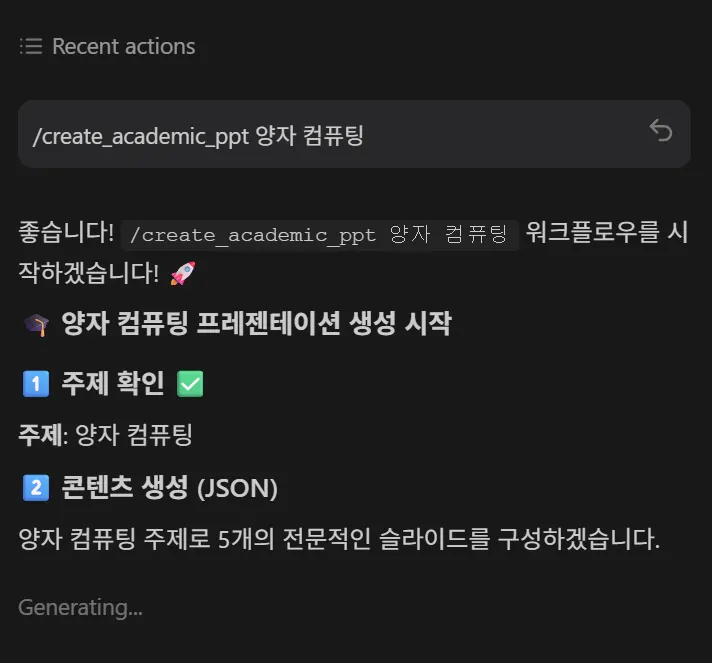
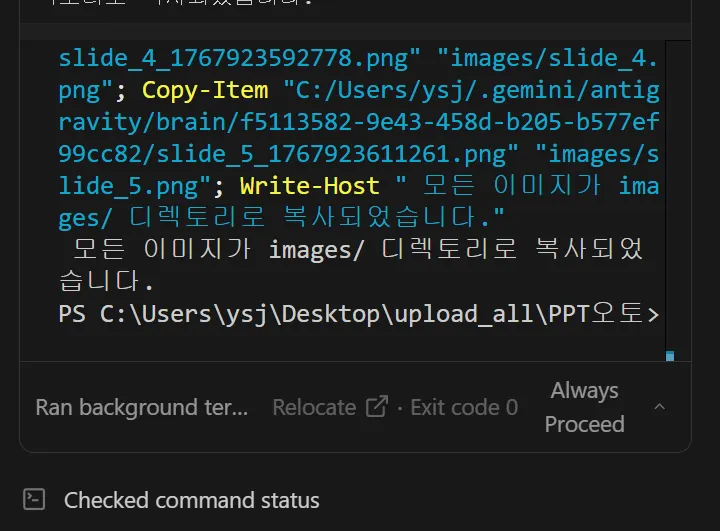
[작동과정]
•
먼저 json파일을 설치해준 다음, 나노바나나로 필요한 이미지를 만든 다음, 마지막으로 PPT를 생성해줌
•
특히, 이미지를 나노바나나pro로 만들어 특정 폴더에 한방에 저장해줌
[결과물]
•
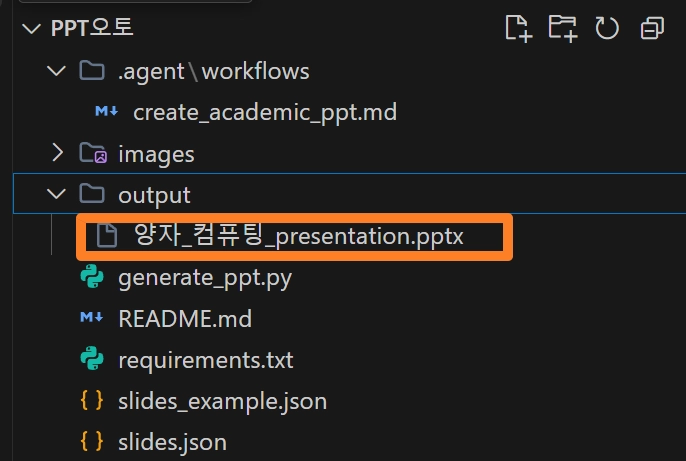
이렇게 OUTPUT폴더에 PPTX파일이 생성된 것을 볼 수 있음
•
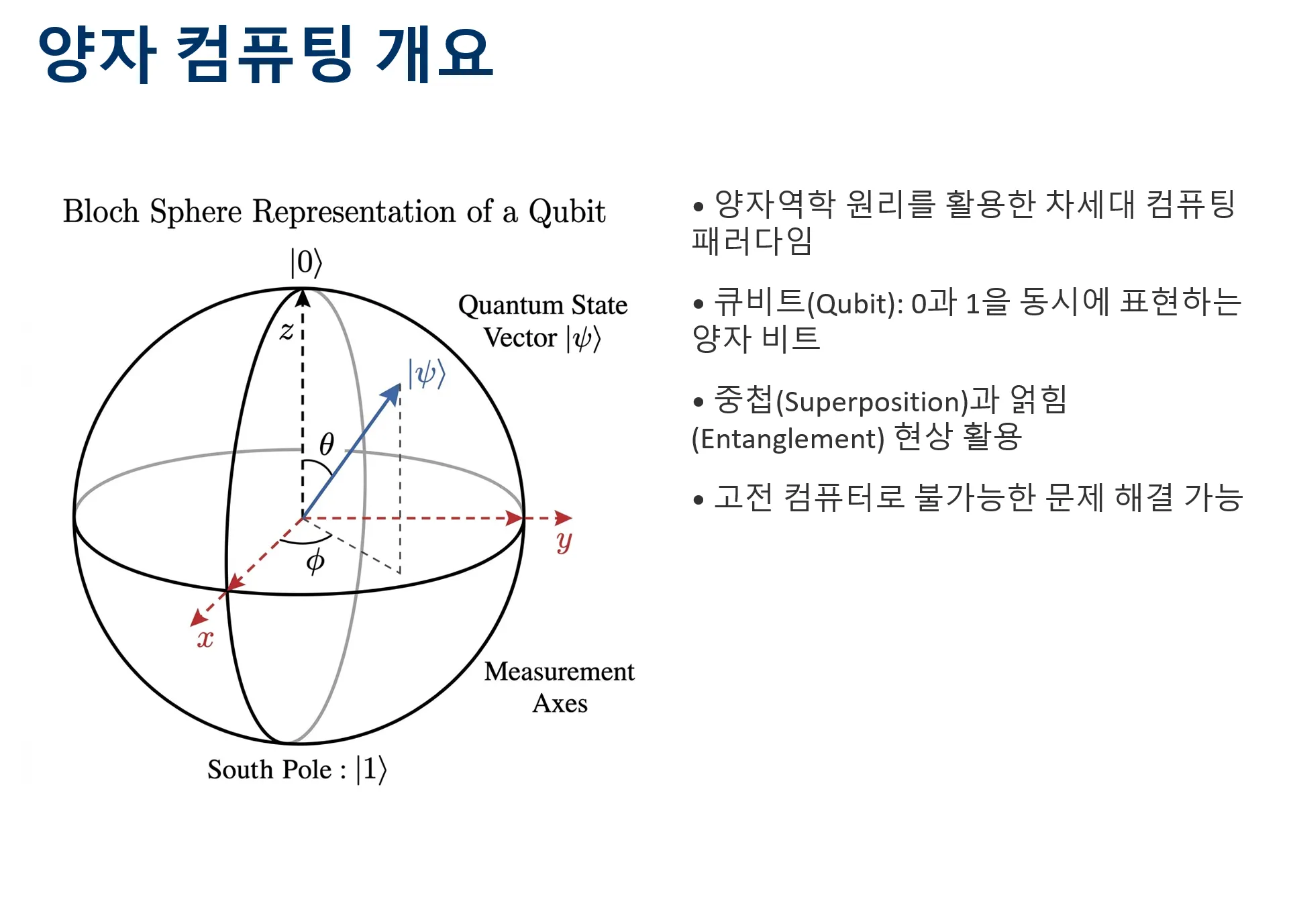
적어도 대학교수님이 만드는 수준의 순백의 기본적인(?) PPT는 자동화가 가능하다는 결론
2-5. 워크플로우실행을 위한 필수 파일 설정현황
•
폴더명: .agent/workflows 속 create_academic_ppt.md 파일
# 학술 PPT 자동 생성 워크플로우
이 워크플로우는 주제를 입력받아 학술 논문 스타일의 이미지가 포함된 PowerPoint 프레젠테이션을 자동으로 생성합니다.
## 사용법
```
/create_academic_ppt [주제]
```
예시: `/create_academic_ppt 인공지능과 머신러닝`
---
## 실행 단계
### 1. 주제 이해
- 슬래시 명령 인수에 제공된 주제를 식별합니다.
- 주제가 제공되지 않은 경우 사용자에게 "어떤 주제에 대한 프레젠테이션을 만들고 싶으신가요?"라고 묻고 응답을 기다립니다.
### 2. 콘텐츠 생성 (JSON)
- 주제를 기반으로 5개의 슬라이드에 대한 JSON 구조를 생성합니다.
- 각 슬라이드는 다음을 포함해야 합니다:
- `title`: 전문적인 제목
- `content`: 주요 글머리 기호 (리스트 형태)
- `image_prompt`: AI 이미지 생성기를 위한 상세 설명
- **필수 스타일**: "학술 그림, IEEE/CVPR 논문 스타일, 개략도, 깔끔한 선, 흰색 배경"
- 이 JSON 콘텐츠를 `slides.json` 파일에 저장합니다.
**JSON 구조 예시:**
```json
{
"topic": "주제명",
"slides": [
{
"title": "슬라이드 제목",
"content": [
"첫 번째 포인트",
"두 번째 포인트",
"세 번째 포인트"
],
"image_prompt": "학술 그림, IEEE/CVPR 논문 스타일, 개략도, 깔끔한 선, 흰색 배경, [구체적인 설명]"
}
]
}
```
### 3. 이미지 생성
- `slides.json`의 각 슬라이드에 대해 `image_prompt`를 사용하여 이미지를 생성합니다.
- 생성된 이미지는 `images/` 디렉토리에 `slide_1.png`, `slide_2.png` 등의 이름으로 저장됩니다.
### 4. PPT 생성
- 생성된 JSON 파일과 이미지를 사용하여 Python 스크립트를 실행합니다.
// turbo
```bash
python generate_ppt.py
```
### 5. 정리 및 확인
- 출력 파일 이름 (예: `[주제]_presentation.pptx`)을 사용자에게 알려줍니다.
- 생성된 PPT 파일의 위치를 안내합니다.
---
## 사전 요구사항
필요한 Python 라이브러리를 설치해야 합니다:
// turbo
```bash
pip install -r requirements.txt
```
## 출력 파일
- **PPT 파일**: `output/[주제]_presentation.pptx`
- **JSON 파일**: `slides.json`
- **이미지 파일**: `images/slide_*.png`
## 주의사항
- Python 3.7 이상이 필요합니다.
- 인터넷 연결이 필요합니다 (이미지 생성용).
- 생성 시간은 약 2-3분 소요됩니다 (이미지 생성 포함).
Markdown
복사
•
requirements.txt 파일
python-pptx>=0.6.21
Pillow>=9.0.0
Markdown
복사
•
slides_example.json 파일
{
"topic": "인공지능과 머신러닝",
"slides": [
{
"title": "인공지능 개요",
"content": [
"인공지능(AI)의 정의: 인간의 지능을 모방하는 컴퓨터 시스템",
"역사: 1950년대 튜링 테스트부터 현재 딥러닝까지",
"주요 분야: 자연어 처리, 컴퓨터 비전, 로보틱스",
"산업 응용: 의료, 금융, 자율주행, 제조업"
],
"image_prompt": "학술 그림, IEEE/CVPR 논문 스타일, 개략도, 깔끔한 선, 흰색 배경, 인공지능 신경망 구조도, 입력층-은닉층-출력층으로 구성된 다층 퍼셉트론"
},
{
"title": "머신러닝 기초",
"content": [
"지도 학습: 레이블된 데이터로 학습 (분류, 회귀)",
"비지도 학습: 레이블 없이 패턴 발견 (클러스터링, 차원 축소)",
"강화 학습: 보상을 통한 최적 행동 학습",
"주요 알고리즘: 선형 회귀, 결정 트리, SVM, 신경망"
],
"image_prompt": "학술 그림, IEEE/CVPR 논문 스타일, 개략도, 깔끔한 선, 흰색 배경, 머신러닝 학습 프로세스 플로우차트, 데이터 입력-모델 학습-예측-평가 순환 구조"
},
{
"title": "딥러닝 아키텍처",
"content": [
"CNN (Convolutional Neural Network): 이미지 처리에 특화",
"RNN (Recurrent Neural Network): 시계열 데이터 처리",
"Transformer: 자연어 처리의 혁신 (BERT, GPT)",
"GAN (Generative Adversarial Network): 생성 모델"
],
"image_prompt": "학술 그림, IEEE/CVPR 논문 스타일, 개략도, 깔끔한 선, 흰색 배경, CNN 아키텍처 다이어그램, 컨볼루션 레이어-풀링 레이어-완전 연결 레이어 구조"
},
{
"title": "학습 최적화 기법",
"content": [
"경사 하강법 (Gradient Descent)과 변형들",
"배치 정규화 (Batch Normalization)",
"드롭아웃 (Dropout)으로 과적합 방지",
"학습률 스케줄링 및 조기 종료"
],
"image_prompt": "학술 그림, IEEE/CVPR 논문 스타일, 개략도, 깔끔한 선, 흰색 배경, 경사 하강법 최적화 과정 그래프, 손실 함수의 3D 표면과 최적점으로 수렴하는 경로"
},
{
"title": "AI의 미래와 과제",
"content": [
"설명 가능한 AI (Explainable AI, XAI)",
"윤리적 AI: 편향성 제거, 공정성 확보",
"엣지 AI: 경량화 모델과 온디바이스 학습",
"AGI (Artificial General Intelligence)를 향한 도전"
],
"image_prompt": "학술 그림, IEEE/CVPR 논문 스타일, 개략도, 깔끔한 선, 흰색 배경, AI 윤리 프레임워크 다이어그램, 투명성-공정성-책임성-프라이버시를 중심으로 한 순환 구조"
}
]
}
JSON
복사
•
generate_ppt.py 파일
"""
학술 스타일 PowerPoint 프레젠테이션 자동 생성 스크립트
slides.json 파일을 읽어 이미지가 포함된 PPT를 생성합니다.
"""
import json
import os
from pathlib import Path
from pptx import Presentation
from pptx.util import Inches, Pt
from pptx.enum.text import PP_ALIGN
from pptx.dml.color import RGBColor
from datetime import datetime
def load_slides_data(json_path='slides.json'):
"""JSON 파일에서 슬라이드 데이터를 로드합니다."""
try:
with open(json_path, 'r', encoding='utf-8') as f:
data = json.load(f)
print(f"✓ JSON 파일 로드 완료: {len(data.get('slides', []))}개 슬라이드")
return data
except FileNotFoundError:
print(f"❌ 오류: {json_path} 파일을 찾을 수 없습니다.")
return None
except json.JSONDecodeError:
print(f"❌ 오류: {json_path} 파일의 JSON 형식이 올바르지 않습니다.")
return None
def create_title_slide(prs, topic):
"""타이틀 슬라이드를 생성합니다."""
slide = prs.slides.add_slide(prs.slide_layouts[6]) # 빈 레이아웃
# 제목 추가
left = Inches(1)
top = Inches(2.5)
width = Inches(8)
height = Inches(1.5)
title_box = slide.shapes.add_textbox(left, top, width, height)
title_frame = title_box.text_frame
title_frame.text = topic
# 제목 스타일링
title_paragraph = title_frame.paragraphs[0]
title_paragraph.alignment = PP_ALIGN.CENTER
title_paragraph.font.size = Pt(44)
title_paragraph.font.bold = True
title_paragraph.font.color.rgb = RGBColor(0, 51, 102) # 다크 블루
# 부제목 추가
subtitle_top = Inches(4.2)
subtitle_box = slide.shapes.add_textbox(left, subtitle_top, width, Inches(0.5))
subtitle_frame = subtitle_box.text_frame
subtitle_frame.text = f"생성일: {datetime.now().strftime('%Y년 %m월 %d일')}"
subtitle_paragraph = subtitle_frame.paragraphs[0]
subtitle_paragraph.alignment = PP_ALIGN.CENTER
subtitle_paragraph.font.size = Pt(16)
subtitle_paragraph.font.color.rgb = RGBColor(100, 100, 100)
print("✓ 타이틀 슬라이드 생성 완료")
def create_content_slide(prs, slide_data, slide_number, images_dir='images'):
"""콘텐츠 슬라이드를 생성합니다."""
slide = prs.slides.add_slide(prs.slide_layouts[6]) # 빈 레이아웃
# 제목 추가
title_left = Inches(0.5)
title_top = Inches(0.3)
title_width = Inches(9)
title_height = Inches(0.8)
title_box = slide.shapes.add_textbox(title_left, title_top, title_width, title_height)
title_frame = title_box.text_frame
title_frame.text = slide_data['title']
title_paragraph = title_frame.paragraphs[0]
title_paragraph.font.size = Pt(32)
title_paragraph.font.bold = True
title_paragraph.font.color.rgb = RGBColor(0, 51, 102)
# 이미지 추가 (왼쪽)
image_path = os.path.join(images_dir, f'slide_{slide_number}.png')
if os.path.exists(image_path):
img_left = Inches(0.5)
img_top = Inches(1.5)
img_width = Inches(4.5)
try:
slide.shapes.add_picture(image_path, img_left, img_top, width=img_width)
print(f" ✓ 이미지 추가: {image_path}")
except Exception as e:
print(f" ⚠ 이미지 추가 실패: {e}")
else:
print(f" ⚠ 이미지 파일 없음: {image_path}")
# 콘텐츠 텍스트 추가 (오른쪽)
content_left = Inches(5.2)
content_top = Inches(1.5)
content_width = Inches(4.3)
content_height = Inches(4.5)
content_box = slide.shapes.add_textbox(content_left, content_top, content_width, content_height)
content_frame = content_box.text_frame
content_frame.word_wrap = True
# 콘텐츠 포인트 추가
for i, point in enumerate(slide_data.get('content', [])):
if i > 0:
content_frame.add_paragraph()
p = content_frame.paragraphs[i]
p.text = f"• {point}"
p.font.size = Pt(16)
p.font.color.rgb = RGBColor(50, 50, 50)
p.space_after = Pt(12)
p.level = 0
print(f"✓ 슬라이드 {slide_number} 생성 완료: {slide_data['title']}")
def generate_presentation(slides_data, output_dir='output'):
"""전체 프레젠테이션을 생성합니다."""
# 출력 디렉토리 생성
Path(output_dir).mkdir(exist_ok=True)
# 새 프레젠테이션 생성
prs = Presentation()
prs.slide_width = Inches(10)
prs.slide_height = Inches(7.5)
topic = slides_data.get('topic', '프레젠테이션')
# 타이틀 슬라이드 생성
create_title_slide(prs, topic)
# 콘텐츠 슬라이드 생성
slides = slides_data.get('slides', [])
for i, slide_data in enumerate(slides, 1):
create_content_slide(prs, slide_data, i)
# 파일 저장
safe_topic = "".join(c for c in topic if c.isalnum() or c in (' ', '_', '-')).strip()
safe_topic = safe_topic.replace(' ', '_')
output_path = os.path.join(output_dir, f'{safe_topic}_presentation.pptx')
prs.save(output_path)
print(f"\n{'='*60}")
print(f"✅ PPT 생성 완료!")
print(f"📁 파일 위치: {output_path}")
print(f"📊 총 슬라이드 수: {len(slides) + 1} (타이틀 포함)")
print(f"{'='*60}\n")
return output_path
def main():
"""메인 실행 함수"""
print("\n" + "="*60)
print("🎓 학술 스타일 PPT 자동 생성 시작")
print("="*60 + "\n")
# JSON 데이터 로드
slides_data = load_slides_data()
if not slides_data:
return
# 이미지 디렉토리 확인
images_dir = 'images'
if not os.path.exists(images_dir):
print(f"⚠ 경고: {images_dir} 디렉토리가 없습니다. 이미지 없이 진행합니다.")
Path(images_dir).mkdir(exist_ok=True)
# PPT 생성
output_path = generate_presentation(slides_data)
print("✨ 모든 작업이 완료되었습니다!")
if __name__ == '__main__':
main()
Python
복사
2-6. 능력자가 만들어 놓은 깃허브
•
코난쌤 깃허브와 유튜브 설명영상

3. gemini API키를 활용한 업그레이드
•
궁금증의 시작: Google Gemini API키를 사용해서 텍스트를 생성하면 퀄리티가 더 좋아질까?
3-1. 역시나 Agent에게 일시키기
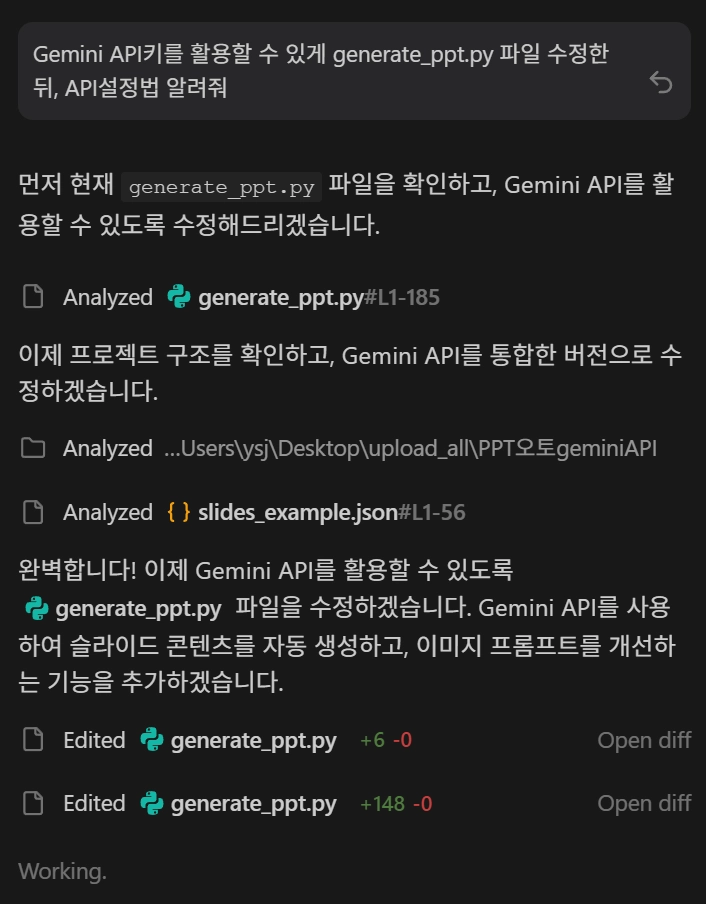
[예시]프롬프트
Gemini API키를 활용할 수 있게 generate_ppt.py 파일 수정한뒤, API설정법 알려줘
Plain Text
복사
[중간 과정]
[차이점 비교]
•
generate.py가 실제로 피피티를 생성해주는 핵심 파이썬 파일인데, 이안에 gemini_API를 활용하는 함수가 들어갔는지 비교해보기
[기본 파일]
"""
학술 스타일 PowerPoint 프레젠테이션 자동 생성 스크립트
slides.json 파일을 읽어 이미지가 포함된 PPT를 생성합니다.
"""
import json
import os
from pathlib import Path
from pptx import Presentation
from pptx.util import Inches, Pt
from pptx.enum.text import PP_ALIGN
from pptx.dml.color import RGBColor
from datetime import datetime
def load_slides_data(json_path='slides.json'):
"""JSON 파일에서 슬라이드 데이터를 로드합니다."""
try:
with open(json_path, 'r', encoding='utf-8') as f:
data = json.load(f)
print(f"✓ JSON 파일 로드 완료: {len(data.get('slides', []))}개 슬라이드")
return data
except FileNotFoundError:
print(f"❌ 오류: {json_path} 파일을 찾을 수 없습니다.")
return None
except json.JSONDecodeError:
print(f"❌ 오류: {json_path} 파일의 JSON 형식이 올바르지 않습니다.")
return None
def create_title_slide(prs, topic):
"""타이틀 슬라이드를 생성합니다."""
slide = prs.slides.add_slide(prs.slide_layouts[6]) # 빈 레이아웃
# 제목 추가
left = Inches(1)
top = Inches(2.5)
width = Inches(8)
height = Inches(1.5)
title_box = slide.shapes.add_textbox(left, top, width, height)
title_frame = title_box.text_frame
title_frame.text = topic
# 제목 스타일링
title_paragraph = title_frame.paragraphs[0]
title_paragraph.alignment = PP_ALIGN.CENTER
title_paragraph.font.size = Pt(44)
title_paragraph.font.bold = True
title_paragraph.font.color.rgb = RGBColor(0, 51, 102) # 다크 블루
# 부제목 추가
subtitle_top = Inches(4.2)
subtitle_box = slide.shapes.add_textbox(left, subtitle_top, width, Inches(0.5))
subtitle_frame = subtitle_box.text_frame
subtitle_frame.text = f"생성일: {datetime.now().strftime('%Y년 %m월 %d일')}"
subtitle_paragraph = subtitle_frame.paragraphs[0]
subtitle_paragraph.alignment = PP_ALIGN.CENTER
subtitle_paragraph.font.size = Pt(16)
subtitle_paragraph.font.color.rgb = RGBColor(100, 100, 100)
print("✓ 타이틀 슬라이드 생성 완료")
def create_content_slide(prs, slide_data, slide_number, images_dir='images'):
"""콘텐츠 슬라이드를 생성합니다."""
slide = prs.slides.add_slide(prs.slide_layouts[6]) # 빈 레이아웃
# 제목 추가
title_left = Inches(0.5)
title_top = Inches(0.3)
title_width = Inches(9)
title_height = Inches(0.8)
title_box = slide.shapes.add_textbox(title_left, title_top, title_width, title_height)
title_frame = title_box.text_frame
title_frame.text = slide_data['title']
title_paragraph = title_frame.paragraphs[0]
title_paragraph.font.size = Pt(32)
title_paragraph.font.bold = True
title_paragraph.font.color.rgb = RGBColor(0, 51, 102)
# 이미지 추가 (왼쪽)
image_path = os.path.join(images_dir, f'slide_{slide_number}.png')
if os.path.exists(image_path):
img_left = Inches(0.5)
img_top = Inches(1.5)
img_width = Inches(4.5)
try:
slide.shapes.add_picture(image_path, img_left, img_top, width=img_width)
print(f" ✓ 이미지 추가: {image_path}")
except Exception as e:
print(f" ⚠ 이미지 추가 실패: {e}")
else:
print(f" ⚠ 이미지 파일 없음: {image_path}")
# 콘텐츠 텍스트 추가 (오른쪽)
content_left = Inches(5.2)
content_top = Inches(1.5)
content_width = Inches(4.3)
content_height = Inches(4.5)
content_box = slide.shapes.add_textbox(content_left, content_top, content_width, content_height)
content_frame = content_box.text_frame
content_frame.word_wrap = True
# 콘텐츠 포인트 추가
for i, point in enumerate(slide_data.get('content', [])):
if i > 0:
content_frame.add_paragraph()
p = content_frame.paragraphs[i]
p.text = f"• {point}"
p.font.size = Pt(16)
p.font.color.rgb = RGBColor(50, 50, 50)
p.space_after = Pt(12)
p.level = 0
print(f"✓ 슬라이드 {slide_number} 생성 완료: {slide_data['title']}")
def generate_presentation(slides_data, output_dir='output'):
"""전체 프레젠테이션을 생성합니다."""
# 출력 디렉토리 생성
Path(output_dir).mkdir(exist_ok=True)
# 새 프레젠테이션 생성
prs = Presentation()
prs.slide_width = Inches(10)
prs.slide_height = Inches(7.5)
topic = slides_data.get('topic', '프레젠테이션')
# 타이틀 슬라이드 생성
create_title_slide(prs, topic)
# 콘텐츠 슬라이드 생성
slides = slides_data.get('slides', [])
for i, slide_data in enumerate(slides, 1):
create_content_slide(prs, slide_data, i)
# 파일 저장
safe_topic = "".join(c for c in topic if c.isalnum() or c in (' ', '_', '-')).strip()
safe_topic = safe_topic.replace(' ', '_')
output_path = os.path.join(output_dir, f'{safe_topic}_presentation.pptx')
prs.save(output_path)
print(f"\n{'='*60}")
print(f"✅ PPT 생성 완료!")
print(f"📁 파일 위치: {output_path}")
print(f"📊 총 슬라이드 수: {len(slides) + 1} (타이틀 포함)")
print(f"{'='*60}\n")
return output_path
def main():
"""메인 실행 함수"""
print("\n" + "="*60)
print("🎓 학술 스타일 PPT 자동 생성 시작")
print("="*60 + "\n")
# JSON 데이터 로드
slides_data = load_slides_data()
if not slides_data:
return
# 이미지 디렉토리 확인
images_dir = 'images'
if not os.path.exists(images_dir):
print(f"⚠ 경고: {images_dir} 디렉토리가 없습니다. 이미지 없이 진행합니다.")
Path(images_dir).mkdir(exist_ok=True)
# PPT 생성
output_path = generate_presentation(slides_data)
print("✨ 모든 작업이 완료되었습니다!")
if __name__ == '__main__':
main()
Python
복사
[변경된 부분]
•
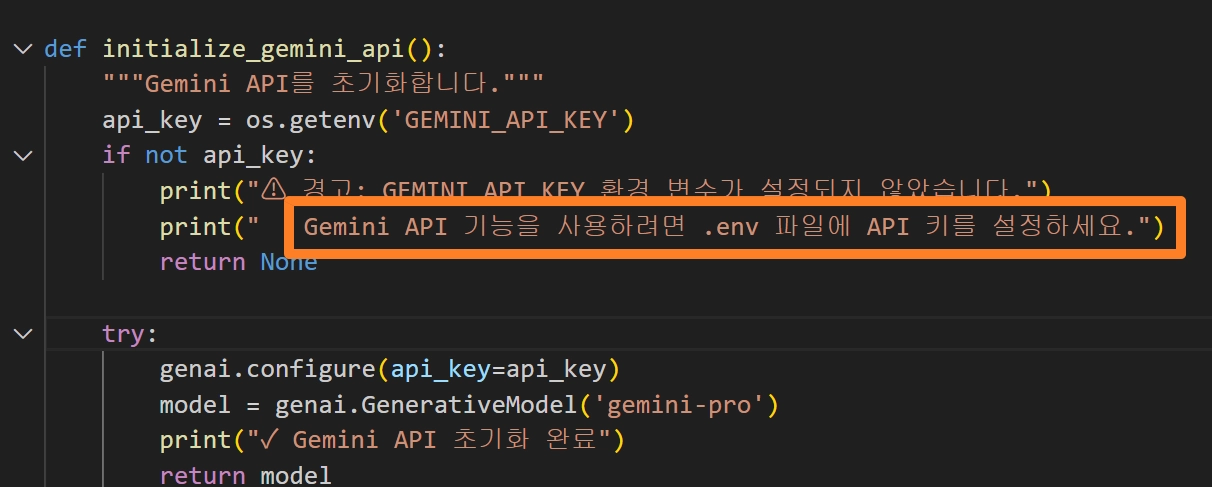
이렇게 Gemini API키를 넣을 수 있는 코드가 추가됨
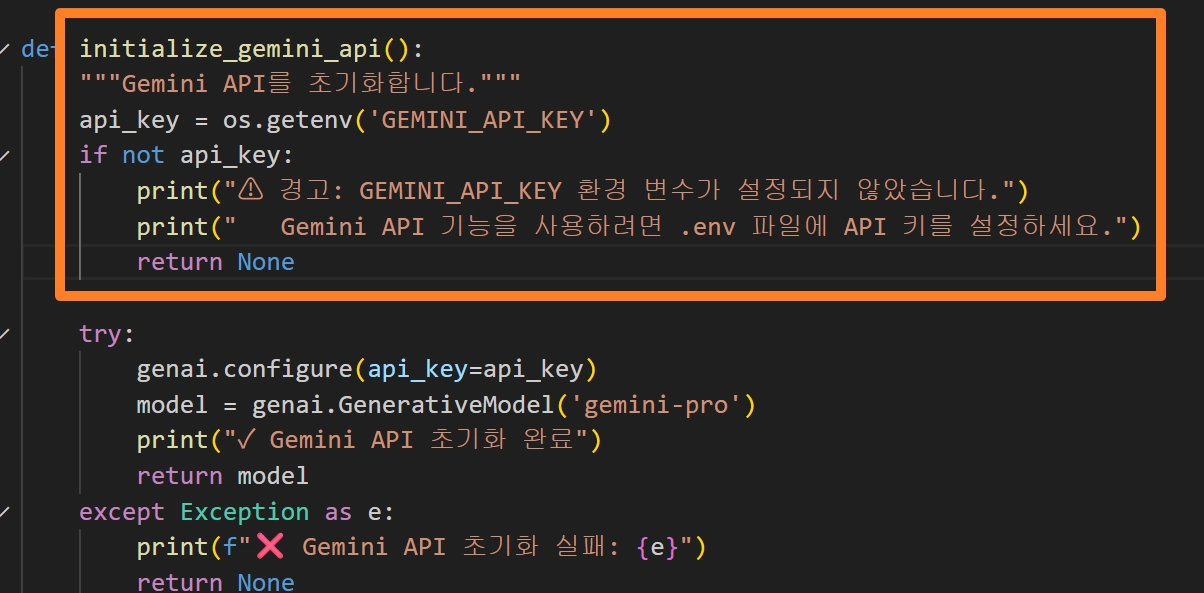
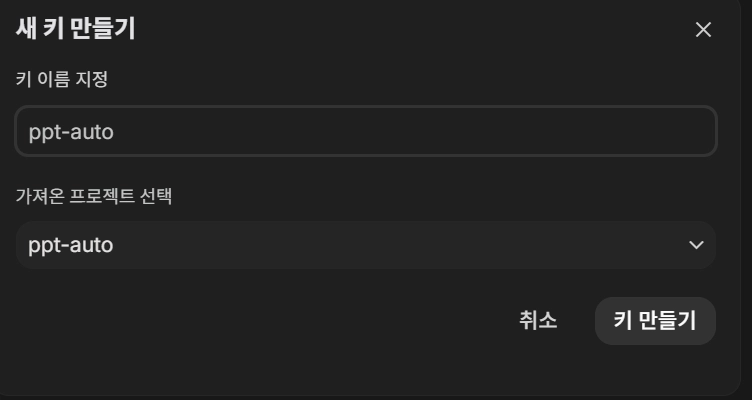
[참고]gemini_API키는 아래 주소에서 설정 가능(무료)
•
접속후 프로젝트를 설정한 뒤, API키를 발급받을 수 있음
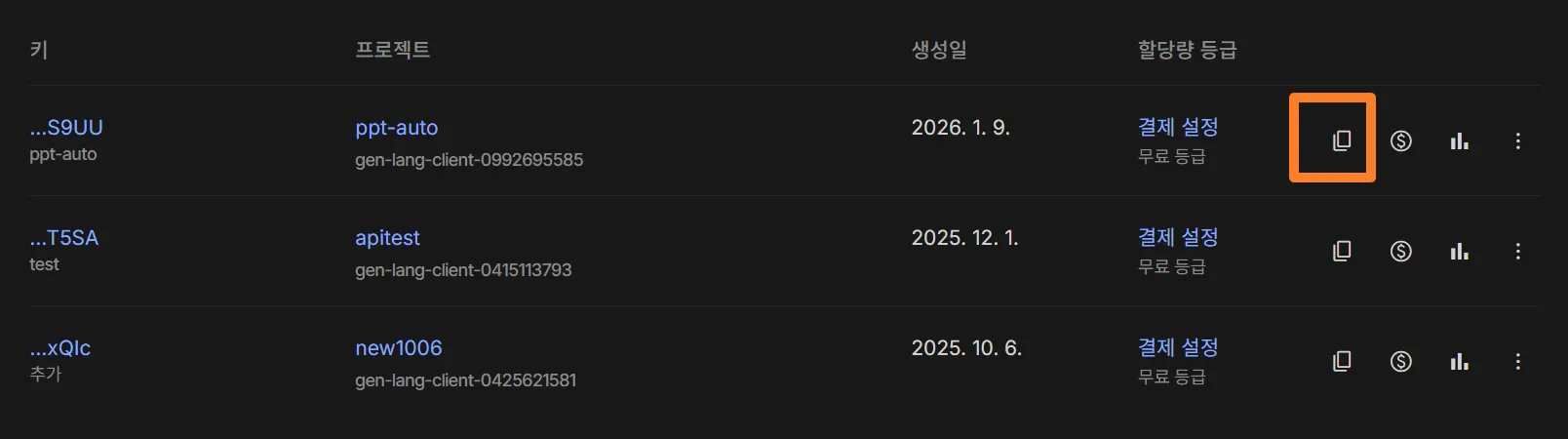
•
발급된 API키를 먼저 복사
•
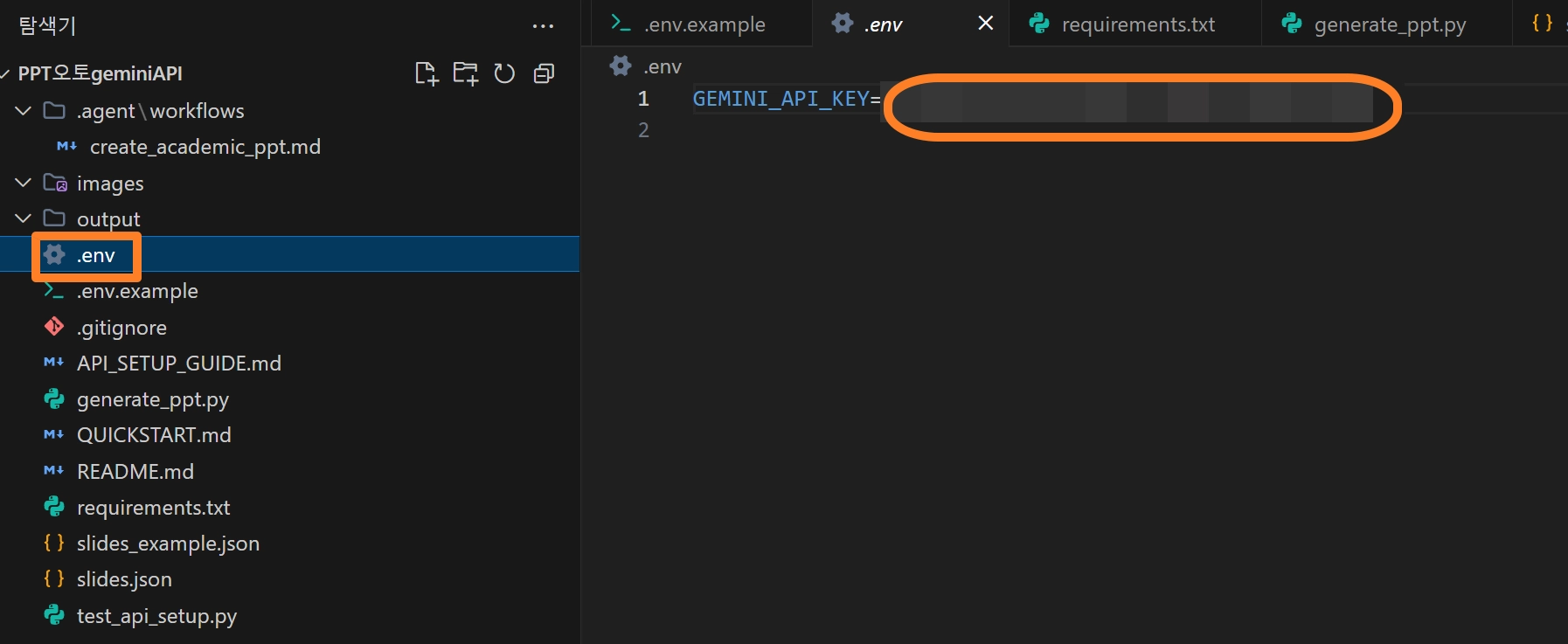
복사된 API키를 generate_ppt.py가 아닌 .env에 집어 넣고 저장
•
코드를 수정한 다음 ctrl+s로 반드시 저장
[변경된 파일]
"""
학술 스타일 PowerPoint 프레젠테이션 자동 생성 스크립트
slides.json 파일을 읽어 이미지가 포함된 PPT를 생성합니다.
Google Gemini API를 활용하여 고품질 콘텐츠를 자동 생성합니다.
"""
import json
import os
from pathlib import Path
from pptx import Presentation
from pptx.util import Inches, Pt
from pptx.enum.text import PP_ALIGN
from pptx.dml.color import RGBColor
from datetime import datetime
import google.generativeai as genai
from dotenv import load_dotenv
# 환경 변수 로드
load_dotenv()
def initialize_gemini_api():
"""Gemini API를 초기화합니다."""
api_key = os.getenv('GEMINI_API_KEY')
if not api_key:
print("⚠ 경고: GEMINI_API_KEY 환경 변수가 설정되지 않았습니다.")
print(" Gemini API 기능을 사용하려면 .env 파일에 API 키를 설정하세요.")
return None
try:
genai.configure(api_key=api_key)
model = genai.GenerativeModel('gemini-pro')
print("✓ Gemini API 초기화 완료")
return model
except Exception as e:
print(f"❌ Gemini API 초기화 실패: {e}")
return None
def generate_slides_with_gemini(topic, num_slides=5, model=None):
"""Gemini API를 사용하여 주제에 맞는 슬라이드 콘텐츠를 생성합니다."""
if not model:
print("⚠ Gemini API가 초기화되지 않았습니다. 기본 모드로 진행합니다.")
return None
prompt = f"""
주제: {topic}
위 주제에 대한 학술 프레젠테이션을 위한 {num_slides}개의 슬라이드 콘텐츠를 생성해주세요.
각 슬라이드는 다음 형식의 JSON으로 작성해주세요:
{{
"topic": "{topic}",
"slides": [
{{
"title": "슬라이드 제목",
"content": [
"핵심 포인트 1",
"핵심 포인트 2",
"핵심 포인트 3",
"핵심 포인트 4"
],
"image_prompt": "학술 그림, IEEE/CVPR 논문 스타일, 개략도, 깔끔한 선, 흰색 배경, [구체적인 이미지 설명]"
}}
]
}}
요구사항:
1. 각 슬라이드는 명확한 제목을 가져야 합니다
2. 콘텐츠는 3-5개의 핵심 포인트로 구성
3. 각 포인트는 간결하고 명확하게 작성
4. image_prompt는 학술 논문 스타일의 다이어그램/그래프를 위한 상세한 설명
5. 슬라이드는 논리적 순서로 배열 (개요 → 세부 내용 → 결론)
6. 전문적이고 학술적인 톤 유지
JSON 형식만 반환하고, 다른 설명은 포함하지 마세요.
"""
try:
print(f"\n🤖 Gemini API로 '{topic}' 주제의 슬라이드 생성 중...")
response = model.generate_content(
prompt,
generation_config=genai.types.GenerationConfig(
temperature=0.7, # 창의성과 일관성의 균형
top_p=0.9,
top_k=40,
max_output_tokens=4096,
)
)
# JSON 파싱
content = response.text.strip()
# 마크다운 코드 블록 제거
if content.startswith('```'):
content = content.split('```')[1]
if content.startswith('json'):
content = content[4:]
content = content.strip()
slides_data = json.loads(content)
print(f"✓ Gemini API로 {len(slides_data.get('slides', []))}개 슬라이드 생성 완료")
return slides_data
except json.JSONDecodeError as e:
print(f"❌ JSON 파싱 오류: {e}")
print(f"응답 내용: {response.text[:500]}...")
return None
except Exception as e:
print(f"❌ 슬라이드 생성 실패: {e}")
return None
def enhance_slide_content_with_gemini(slide_data, model=None):
"""기존 슬라이드 콘텐츠를 Gemini API로 개선합니다."""
if not model:
return slide_data
prompt = f"""
다음 슬라이드 콘텐츠를 더 전문적이고 학술적으로 개선해주세요:
제목: {slide_data['title']}
콘텐츠:
{chr(10).join(f"- {point}" for point in slide_data.get('content', []))}
요구사항:
1. 제목을 더 명확하고 전문적으로 개선
2. 각 포인트를 더 구체적이고 정보가 풍부하게 작성
3. 학술적 톤 유지
4. 3-5개의 핵심 포인트로 정리
5. 간결하면서도 정보가 풍부하게
다음 JSON 형식으로만 응답해주세요:
{{
"title": "개선된 제목",
"content": [
"개선된 포인트 1",
"개선된 포인트 2",
"개선된 포인트 3"
]
}}
"""
try:
response = model.generate_content(
prompt,
generation_config=genai.types.GenerationConfig(
temperature=0.5, # 더 일관성 있는 개선
top_p=0.8,
max_output_tokens=1024,
)
)
content = response.text.strip()
if content.startswith('```'):
content = content.split('```')[1]
if content.startswith('json'):
content = content[4:]
content = content.strip()
enhanced = json.loads(content)
return {**slide_data, **enhanced}
except Exception as e:
print(f" ⚠ 콘텐츠 개선 실패: {e}")
return slide_data
def load_slides_data(json_path='slides.json'):
"""JSON 파일에서 슬라이드 데이터를 로드합니다."""
try:
with open(json_path, 'r', encoding='utf-8') as f:
data = json.load(f)
print(f"✓ JSON 파일 로드 완료: {len(data.get('slides', []))}개 슬라이드")
return data
except FileNotFoundError:
print(f"❌ 오류: {json_path} 파일을 찾을 수 없습니다.")
return None
except json.JSONDecodeError:
print(f"❌ 오류: {json_path} 파일의 JSON 형식이 올바르지 않습니다.")
return None
def create_title_slide(prs, topic):
"""타이틀 슬라이드를 생성합니다."""
slide = prs.slides.add_slide(prs.slide_layouts[6]) # 빈 레이아웃
# 제목 추가
left = Inches(1)
top = Inches(2.5)
width = Inches(8)
height = Inches(1.5)
title_box = slide.shapes.add_textbox(left, top, width, height)
title_frame = title_box.text_frame
title_frame.text = topic
# 제목 스타일링
title_paragraph = title_frame.paragraphs[0]
title_paragraph.alignment = PP_ALIGN.CENTER
title_paragraph.font.size = Pt(44)
title_paragraph.font.bold = True
title_paragraph.font.color.rgb = RGBColor(0, 51, 102) # 다크 블루
# 부제목 추가
subtitle_top = Inches(4.2)
subtitle_box = slide.shapes.add_textbox(left, subtitle_top, width, Inches(0.5))
subtitle_frame = subtitle_box.text_frame
subtitle_frame.text = f"생성일: {datetime.now().strftime('%Y년 %m월 %d일')}"
subtitle_paragraph = subtitle_frame.paragraphs[0]
subtitle_paragraph.alignment = PP_ALIGN.CENTER
subtitle_paragraph.font.size = Pt(16)
subtitle_paragraph.font.color.rgb = RGBColor(100, 100, 100)
print("✓ 타이틀 슬라이드 생성 완료")
def create_content_slide(prs, slide_data, slide_number, images_dir='images'):
"""콘텐츠 슬라이드를 생성합니다."""
slide = prs.slides.add_slide(prs.slide_layouts[6]) # 빈 레이아웃
# 제목 추가
title_left = Inches(0.5)
title_top = Inches(0.3)
title_width = Inches(9)
title_height = Inches(0.8)
title_box = slide.shapes.add_textbox(title_left, title_top, title_width, title_height)
title_frame = title_box.text_frame
title_frame.text = slide_data['title']
title_paragraph = title_frame.paragraphs[0]
title_paragraph.font.size = Pt(32)
title_paragraph.font.bold = True
title_paragraph.font.color.rgb = RGBColor(0, 51, 102)
# 이미지 추가 (왼쪽)
image_path = os.path.join(images_dir, f'slide_{slide_number}.png')
if os.path.exists(image_path):
img_left = Inches(0.5)
img_top = Inches(1.5)
img_width = Inches(4.5)
try:
slide.shapes.add_picture(image_path, img_left, img_top, width=img_width)
print(f" ✓ 이미지 추가: {image_path}")
except Exception as e:
print(f" ⚠ 이미지 추가 실패: {e}")
else:
print(f" ⚠ 이미지 파일 없음: {image_path}")
# 콘텐츠 텍스트 추가 (오른쪽)
content_left = Inches(5.2)
content_top = Inches(1.5)
content_width = Inches(4.3)
content_height = Inches(4.5)
content_box = slide.shapes.add_textbox(content_left, content_top, content_width, content_height)
content_frame = content_box.text_frame
content_frame.word_wrap = True
# 콘텐츠 포인트 추가
for i, point in enumerate(slide_data.get('content', [])):
if i > 0:
content_frame.add_paragraph()
p = content_frame.paragraphs[i]
p.text = f"• {point}"
p.font.size = Pt(16)
p.font.color.rgb = RGBColor(50, 50, 50)
p.space_after = Pt(12)
p.level = 0
print(f"✓ 슬라이드 {slide_number} 생성 완료: {slide_data['title']}")
def generate_presentation(slides_data, output_dir='output'):
"""전체 프레젠테이션을 생성합니다."""
# 출력 디렉토리 생성
Path(output_dir).mkdir(exist_ok=True)
# 새 프레젠테이션 생성
prs = Presentation()
prs.slide_width = Inches(10)
prs.slide_height = Inches(7.5)
topic = slides_data.get('topic', '프레젠테이션')
# 타이틀 슬라이드 생성
create_title_slide(prs, topic)
# 콘텐츠 슬라이드 생성
slides = slides_data.get('slides', [])
for i, slide_data in enumerate(slides, 1):
create_content_slide(prs, slide_data, i)
# 파일 저장
safe_topic = "".join(c for c in topic if c.isalnum() or c in (' ', '_', '-')).strip()
safe_topic = safe_topic.replace(' ', '_')
output_path = os.path.join(output_dir, f'{safe_topic}_presentation.pptx')
prs.save(output_path)
print(f"\n{'='*60}")
print(f"✅ PPT 생성 완료!")
print(f"📁 파일 위치: {output_path}")
print(f"📊 총 슬라이드 수: {len(slides) + 1} (타이틀 포함)")
print(f"{'='*60}\n")
return output_path
def main():
"""메인 실행 함수"""
print("\n" + "="*60)
print("🎓 학술 스타일 PPT 자동 생성 시작")
print("="*60 + "\n")
# Gemini API 초기화
gemini_model = initialize_gemini_api()
# 사용자 입력 받기
print("\n📋 PPT 생성 모드를 선택하세요:")
print("1. 기존 slides.json 파일 사용")
print("2. Gemini API로 새로운 슬라이드 생성")
print("3. 기존 JSON 파일의 콘텐츠를 Gemini API로 개선")
mode = input("\n선택 (1/2/3, 기본값: 1): ").strip() or "1"
slides_data = None
if mode == "2":
# Gemini API로 새로운 슬라이드 생성
if not gemini_model:
print("❌ Gemini API를 사용할 수 없습니다. 모드 1을 사용하세요.")
return
topic = input("\n📝 프레젠테이션 주제를 입력하세요: ").strip()
if not topic:
print("❌ 주제를 입력해야 합니다.")
return
num_slides = input("📊 생성할 슬라이드 개수 (기본값: 5): ").strip() or "5"
try:
num_slides = int(num_slides)
except ValueError:
num_slides = 5
slides_data = generate_slides_with_gemini(topic, num_slides, gemini_model)
if slides_data:
# 생성된 데이터를 파일로 저장
output_json = f"slides_generated_{datetime.now().strftime('%Y%m%d_%H%M%S')}.json"
with open(output_json, 'w', encoding='utf-8') as f:
json.dump(slides_data, f, ensure_ascii=False, indent=2)
print(f"✓ 생성된 슬라이드 데이터 저장: {output_json}")
elif mode == "3":
# 기존 콘텐츠를 Gemini API로 개선
if not gemini_model:
print("❌ Gemini API를 사용할 수 없습니다. 모드 1을 사용하세요.")
return
json_path = input("\n📁 JSON 파일 경로 (기본값: slides.json): ").strip() or "slides.json"
slides_data = load_slides_data(json_path)
if slides_data:
print("\n🔧 Gemini API로 콘텐츠 개선 중...")
for i, slide in enumerate(slides_data.get('slides', []), 1):
print(f" 슬라이드 {i} 개선 중...")
slides_data['slides'][i-1] = enhance_slide_content_with_gemini(slide, gemini_model)
# 개선된 데이터를 파일로 저장
output_json = f"slides_enhanced_{datetime.now().strftime('%Y%m%d_%H%M%S')}.json"
with open(output_json, 'w', encoding='utf-8') as f:
json.dump(slides_data, f, ensure_ascii=False, indent=2)
print(f"✓ 개선된 슬라이드 데이터 저장: {output_json}")
else:
# 기존 JSON 파일 사용
json_path = input("\n📁 JSON 파일 경로 (기본값: slides.json): ").strip() or "slides.json"
slides_data = load_slides_data(json_path)
if not slides_data:
return
# 이미지 디렉토리 확인
images_dir = 'images'
if not os.path.exists(images_dir):
print(f"⚠ 경고: {images_dir} 디렉토리가 없습니다. 이미지 없이 진행합니다.")
Path(images_dir).mkdir(exist_ok=True)
# PPT 생성
output_path = generate_presentation(slides_data)
print("✨ 모든 작업이 완료되었습니다!")
if __name__ == '__main__':
main()
Python
복사
3-2.워크플로우 실행
•
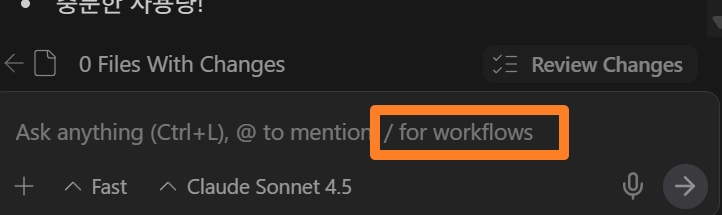
워크플로우를 실행시키는 방법은 아래 그림 처럼 슬러쉬(’/’)를 사용하기
[만들어진 PPT 전체]
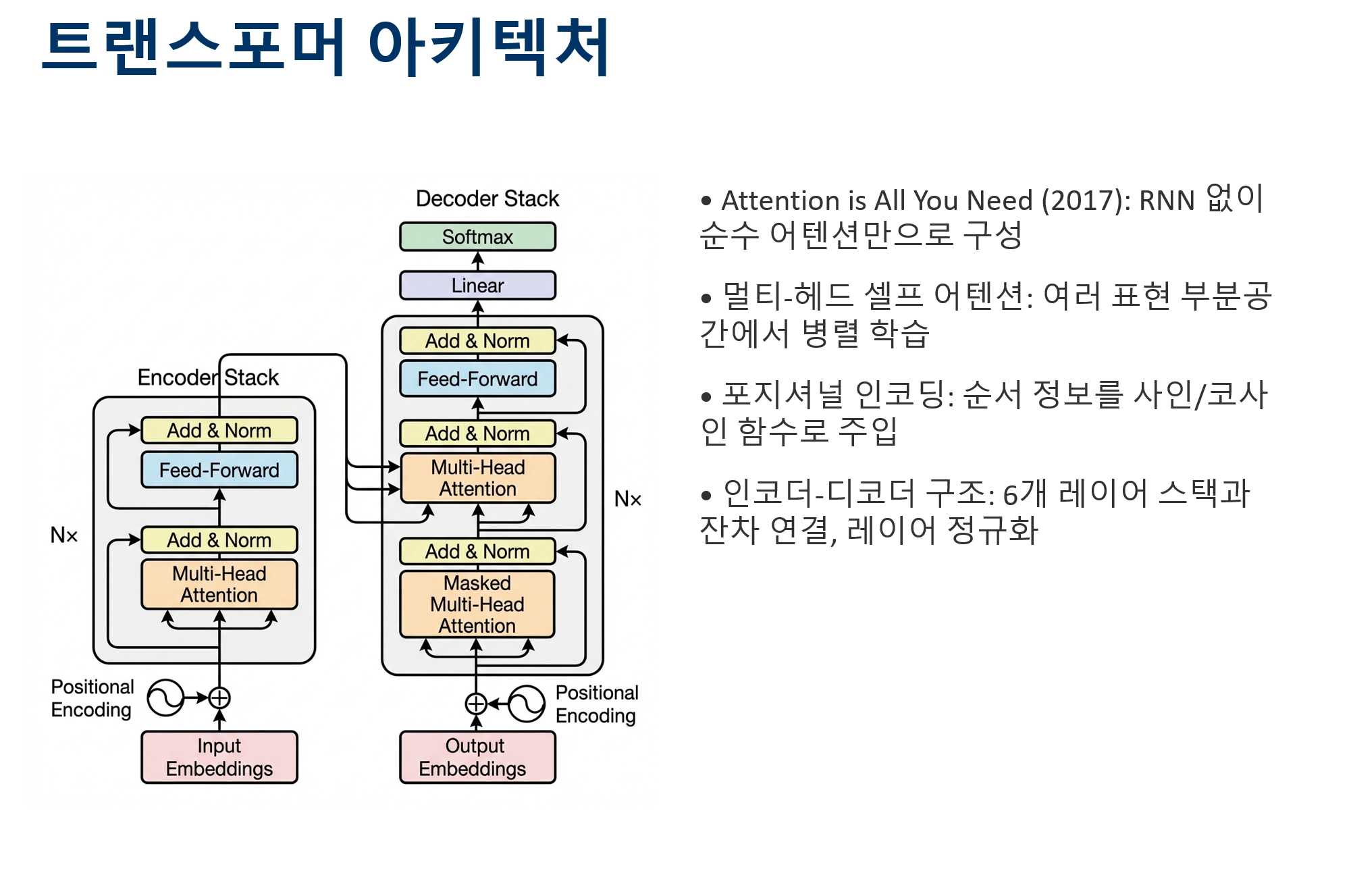
 Gemini API키를 쓴것과 안쓴것의 차이가 크게 느껴지지 않는데.. 워크플로우를 손봐야 할 듯
[결과물 일부]
3-3.워크플로우 수정
•
워크 플로우 수정을 위한 예시프롬프트
워크플로우를 수정하자.
1. 배경은 흰색이 아니라 전체적인 톤을 트렌디한 글라스모피즘 중심으로
2. 전체 슬라이드의 갯수를 10장 정도로 조정
3. 색상톤을 유지하되, 강조해야할 개념을 굵은 글씨로 표현
4. 중간 중간 위트있는 비유와 예시로 학술적이면서도 재미있게 텍스트 생성
5. 이 모든 과정을 Gemini API를 보다 적극적으로 활용하여 고퀄리티로 변경
Plain Text
복사
•
[워크플로우 수정 과정]
[수정된 워크플로우md 파일]
# 🎨 트렌디 학술 PPT 자동 생성 워크플로우
이 워크플로우는 주제를 입력받아 **글라스모피즘 스타일**의 트렌디하고 고퀄리티 PowerPoint 프레젠테이션을 자동으로 생성합니다.
**Gemini API**를 적극 활용하여 학술적이면서도 재미있는 콘텐츠를 생성합니다.
## 사용법
```
/create_academic_ppt [주제]
```
예시: `/create_academic_ppt 양자 컴퓨팅의 미래`
---
## 🎯 디자인 특징
- 🎨 **글라스모피즘 스타일**: 투명한 배경, 블러 효과, 그라데이션
- 🌈 **트렌디한 색상**: 생동감 있는 그라데이션과 네온 컬러
- 💎 **프리미엄 느낌**: 현대적이고 세련된 디자인
- 📝 **강조 표현**: 중요 개념은 **굵은 글씨**로 강조
- 😄 **위트와 재미**: 학술적이면서도 흥미로운 비유와 예시
---
## 실행 단계
### 1. 주제 이해
- 슬래시 명령 인수에 제공된 주제를 식별합니다.
- 주제가 제공되지 않은 경우 사용자에게 "어떤 주제에 대한 프레젠테이션을 만들고 싶으신가요?"라고 묻고 응답을 기다립니다.
### 2. Gemini API로 고퀄리티 콘텐츠 생성 ⭐
**Gemini API를 사용하여 10장의 슬라이드 콘텐츠를 생성합니다.**
프롬프트 요구사항:
- **슬라이드 개수**: 10장 (타이틀 제외)
- **톤**: 학술적이면서도 재미있고 흥미로운 스타일
- **강조**: 핵심 개념은 **굵은 글씨**로 표현 (마크다운 `**텍스트**` 형식)
- **비유와 예시**: 중간중간 위트있는 비유로 이해를 돕기
- **구조**: 논리적 흐름 (도입 → 핵심 개념 → 심화 → 응용 → 미래 전망)
**JSON 구조 예시:**
```json
{
"topic": "주제명",
"design_theme": {
"primary_color": "#667eea",
"secondary_color": "#764ba2",
"accent_color": "#f093fb",
"style": "glassmorphism"
},
"slides": [
{
"title": "슬라이드 제목",
"content": [
"**핵심 개념**: 설명과 함께",
"재미있는 비유: 마치 ~처럼",
"구체적인 예시와 수치",
"**강조할 포인트**: 중요한 내용"
],
"image_prompt": "modern glassmorphism style, gradient background with purple and blue tones, semi-transparent elements, blur effects, [구체적인 다이어그램 설명], professional tech illustration, vibrant colors, clean design",
"notes": "발표자 노트 (선택사항)"
}
]
}
```
**Gemini API 프롬프트 템플릿:**
```
주제: [사용자 입력 주제]
위 주제에 대한 트렌디하고 고퀄리티 프레젠테이션을 위한 10개의 슬라이드 콘텐츠를 생성해주세요.
요구사항:
1. 총 10장의 슬라이드 (논리적 구조)
2. 각 슬라이드는 4-6개의 핵심 포인트
3. **중요 개념**은 마크다운 굵은 글씨로 표현 (예: **트랜스포머**)
4. 학술적 정확성 + 위트있는 비유/예시 포함
5. 각 슬라이드마다 글라스모피즘 스타일 이미지 프롬프트 생성
6. 이미지 프롬프트는 "modern glassmorphism style, gradient background..."로 시작
7. 색상 테마: 보라-파랑 그라데이션 (#667eea, #764ba2, #f093fb)
JSON 형식으로만 응답하세요.
```
이 JSON 콘텐츠를 `slides.json` 파일에 저장합니다.
### 3. 글라스모피즘 이미지 생성 🎨
- `slides.json`의 각 슬라이드에 대해 `image_prompt`를 사용하여 이미지를 생성합니다.
- **스타일**: 글라스모피즘, 그라데이션 배경, 반투명 요소, 블러 효과
- **색상**: 보라-파랑-핑크 그라데이션 톤
- 생성된 이미지는 `images/` 디렉토리에 `slide_1.png`, `slide_2.png` 등의 이름으로 저장됩니다.
### 4. PPT 생성 (자동 실행)
생성된 JSON 파일과 이미지를 사용하여 Python 스크립트를 실행합니다.
스크립트는 자동으로 모드 1 (기존 JSON 사용)을 선택합니다.
// turbo
```bash
echo 1 | python generate_ppt.py
```
### 5. 정리 및 확인 ✅
- 출력 파일 이름 (예: `[주제]_presentation.pptx`)을 사용자에게 알려줍니다.
- 생성된 PPT 파일의 위치를 안내합니다.
- 총 슬라이드 수: 11장 (타이틀 + 콘텐츠 10장)
---
## 🎨 디자인 가이드라인
### 색상 팔레트
- **Primary**: #667eea (보라-파랑)
- **Secondary**: #764ba2 (진한 보라)
- **Accent**: #f093fb (핑크)
- **Background**: 그라데이션 (투명 효과)
### 이미지 스타일
```
modern glassmorphism style, gradient background with purple and blue tones,
semi-transparent frosted glass elements, subtle blur effects,
[다이어그램 설명], professional tech illustration,
vibrant neon accents, clean minimalist design,
soft shadows, depth layers
```
### 텍스트 강조
- **핵심 개념**: 굵은 글씨
- 일반 설명: 일반 글씨
- 비유/예시: 이탤릭 또는 특별 표시
---
## 사전 요구사항
필요한 Python 라이브러리를 설치해야 합니다:
// turbo
```bash
pip install -r requirements.txt
```
Gemini API 키가 설정되어 있어야 합니다:
```bash
# .env 파일에 API 키 설정
GEMINI_API_KEY=your_api_key_here
```
## 출력 파일
- **PPT 파일**: `output/[주제]_presentation.pptx`
- **JSON 파일**: `slides.json` (Gemini가 생성한 콘텐츠)
- **이미지 파일**: `images/slide_*.png` (10장의 글라스모피즘 이미지)
## 📊 예상 결과
- **슬라이드 수**: 11장 (타이틀 + 콘텐츠 10장)
- **스타일**: 트렌디한 글라스모피즘
- **콘텐츠**: 학술적 + 재미있는
- **품질**: 프리미엄 고퀄리티
- **생성 시간**: 약 3-5분 (Gemini API + 이미지 생성)
## 💡 팁
- 주제는 구체적일수록 좋습니다
- Gemini API가 창의적인 비유와 예시를 생성합니다
- 생성 후 PowerPoint에서 추가 편집 가능
- 색상 테마는 JSON에서 커스터마이즈 가능
Markdown
복사
•
수정된 워크플로우를 사용해 만든 결과 확인
•
확실히 다르긴 한데, 좀더 명확한 워크 플로우가 필요할 듯
•
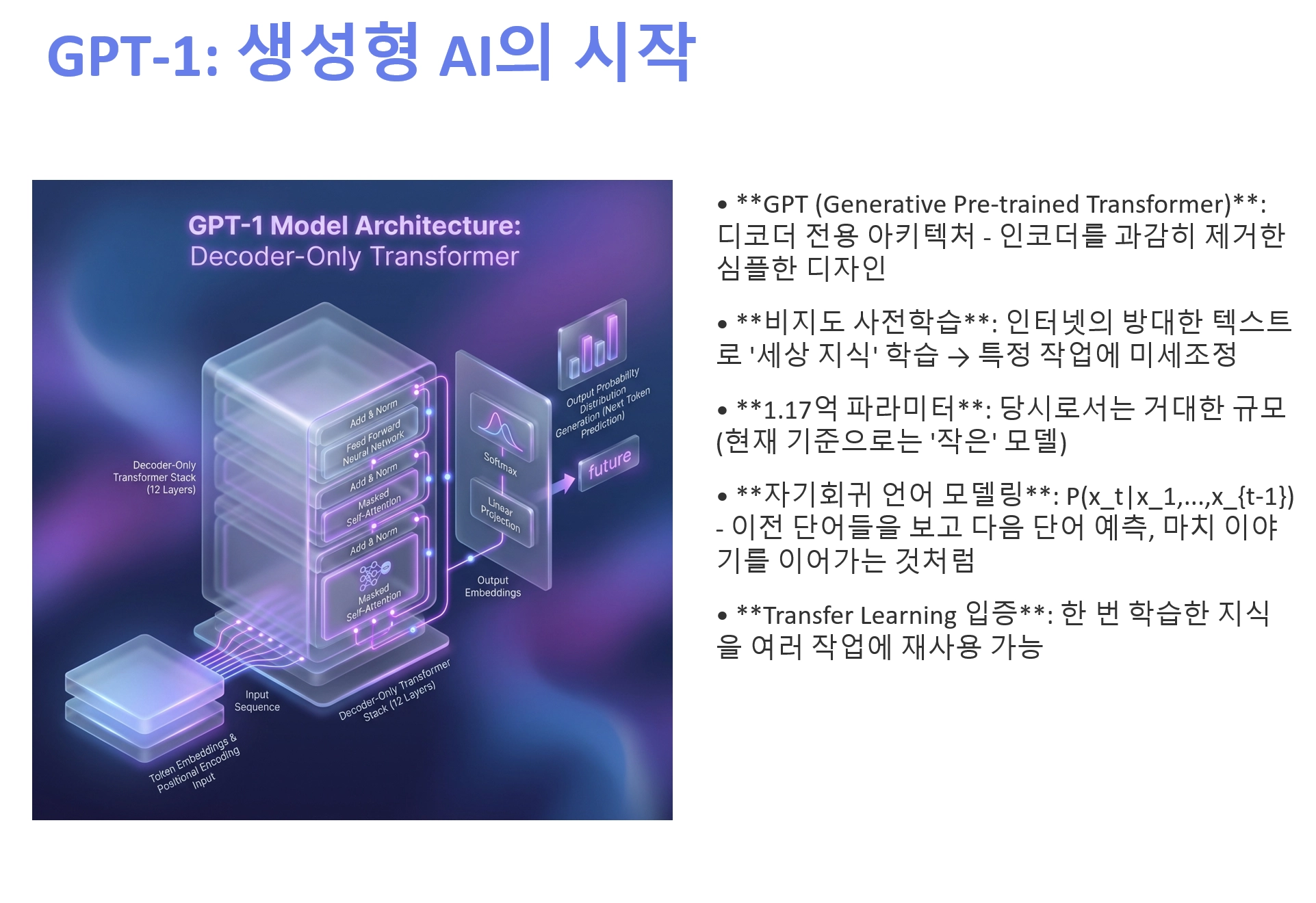
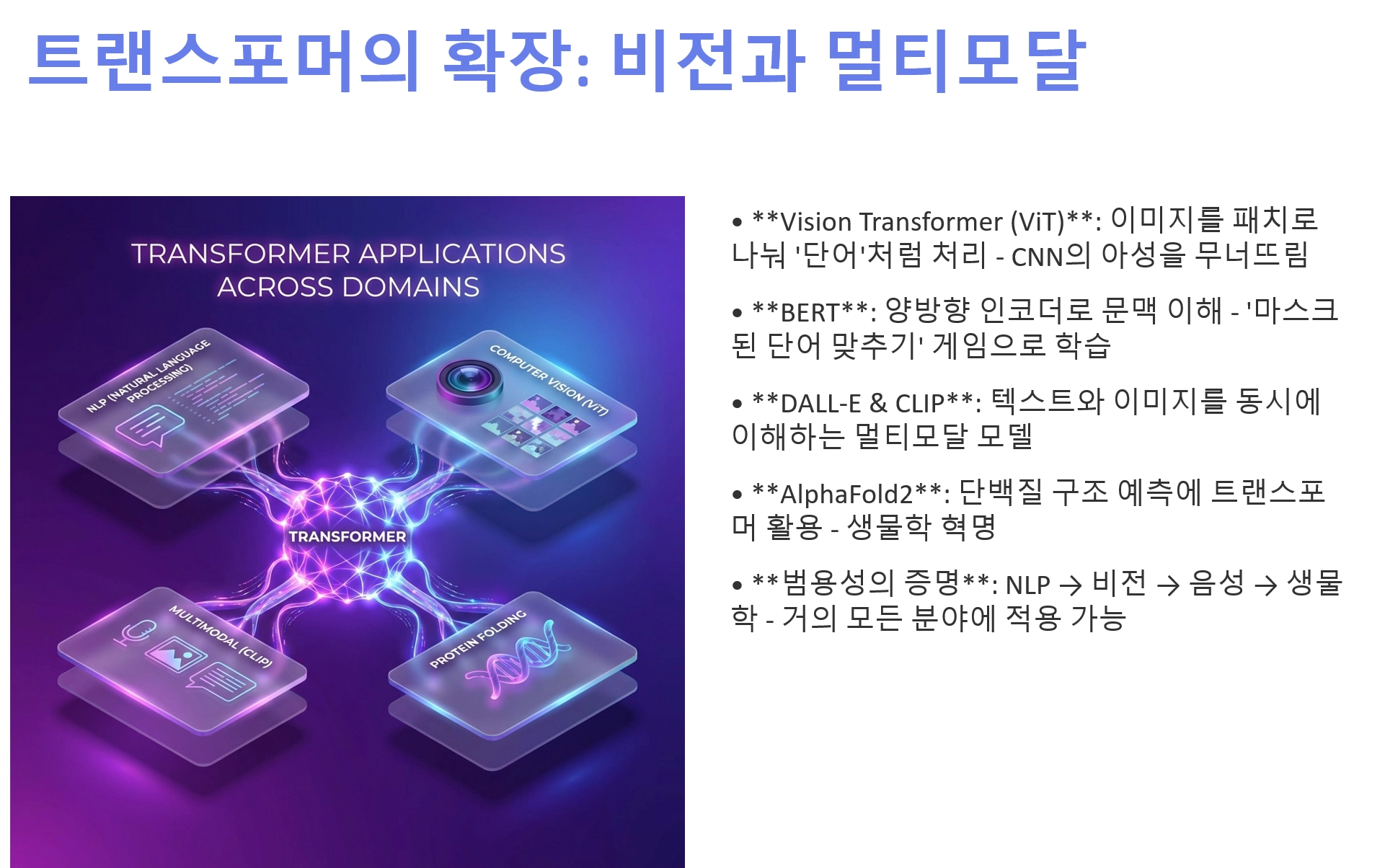
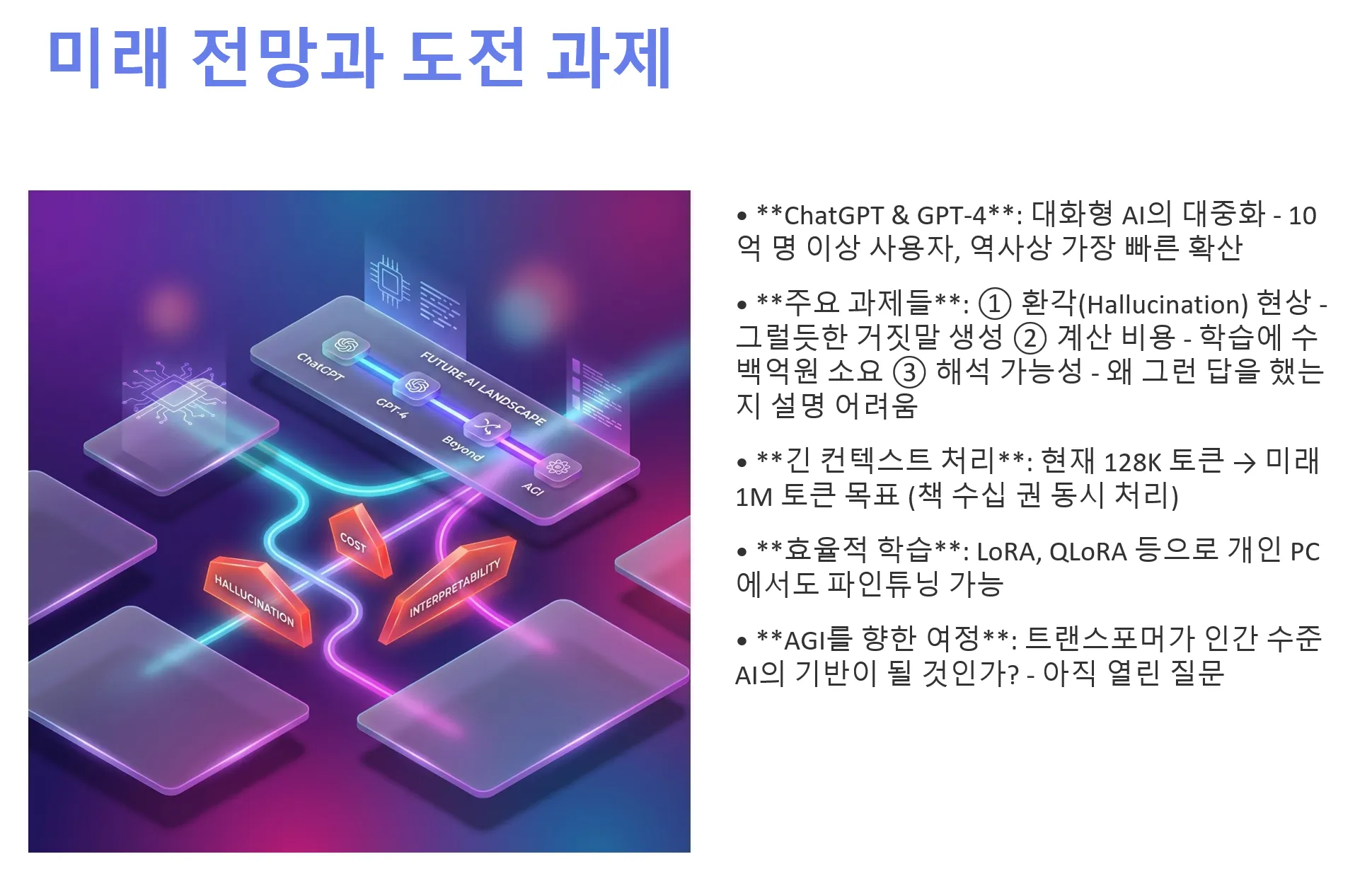
생성된 PPT
•
기본 글꼴과 슬라이드 배경 색상 정도만 변경해도 약 80%정도의 초안을 완성할 수 있는 수준
[수정된 워크플로우도 만들어진 PPT 예시]