



목차(클릭하세요)

이 페이지에서 설명하는 방식은 반드시 같은wifi에 연결필요
웹 브라우저 화면의 변경을 아두이노 안에서 html태그를 이용해 제어할 수 있음
WiFiClient클래스를 통해 client객체를 만들고, clinet객체를 조정하는 방식
[참조 사이트]


1. 아두이노 우노 R4 WiFi - WiFi 연결하기
1-1. 아두이노 우노 R4 WiFi를 네트워크에 연결해 원격으로 제어/데이터를 전송해보기
[주의점] 아두이노 우노 R4 WiFi는 2.4GHz 대역만 지원합니다. (WiFi - 5GHz 사용 불가)
1-2.관련 라이브러리
•
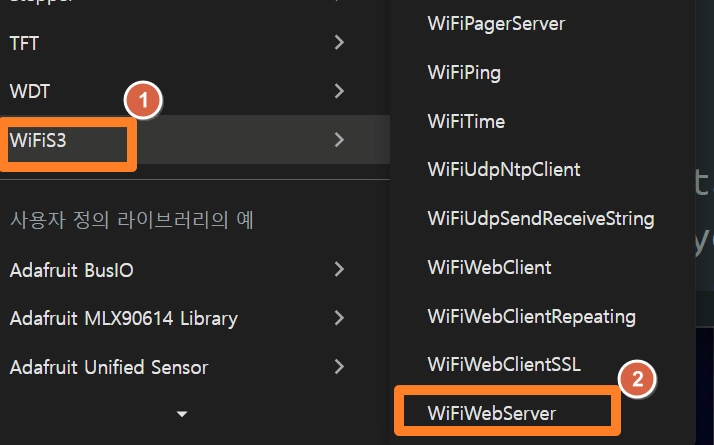
WiFi는 사용을 위한 "WiFiS3.h" 라이브러리가 이미 존재함
1-3.예제_ SimpleWebServerWiFi
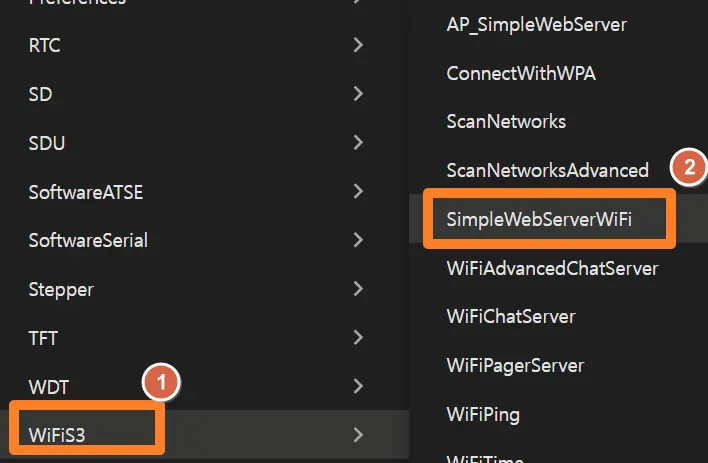
/*
WiFi Web Server LED Blink
A simple web server that lets you blink an LED via the web.
This sketch will print the IP address of your WiFi module (once connected)
to the Serial Monitor. From there, you can open that address in a web browser
to turn on and off the LED_BUILTIN.
If the IP address of your board is yourAddress:
http://yourAddress/H turns the LED on
http://yourAddress/L turns it off
This example is written for a network using WPA encryption. For
WEP or WPA, change the WiFi.begin() call accordingly.
Circuit:
* Board with NINA module (Arduino MKR WiFi 1010, MKR VIDOR 4000 and Uno WiFi Rev.2)
* LED attached to pin 9
created 25 Nov 2012
by Tom Igoe
Find the full UNO R4 WiFi Network documentation here:
https://docs.arduino.cc/tutorials/uno-r4-wifi/wifi-examples#simple-webserver
*/
#include "WiFiS3.h"
#include "arduino_secrets.h"
///////please enter your sensitive data in the Secret tab/arduino_secrets.h
char ssid[] = SECRET_SSID; // your network SSID (name)
char pass[] = SECRET_PASS; // your network password (use for WPA, or use as key for WEP)
int keyIndex = 0; // your network key index number (needed only for WEP)
int led = LED_BUILTIN;
int status = WL_IDLE_STATUS;
WiFiServer server(80);
void setup() {
Serial.begin(9600); // initialize serial communication
pinMode(led, OUTPUT); // set the LED pin mode
// check for the WiFi module:
if (WiFi.status() == WL_NO_MODULE) {
Serial.println("Communication with WiFi module failed!");
// don't continue
while (true);
}
String fv = WiFi.firmwareVersion();
if (fv < WIFI_FIRMWARE_LATEST_VERSION) {
Serial.println("Please upgrade the firmware");
}
// attempt to connect to WiFi network:
while (status != WL_CONNECTED) {
Serial.print("Attempting to connect to Network named: ");
Serial.println(ssid); // print the network name (SSID);
// Connect to WPA/WPA2 network. Change this line if using open or WEP network:
status = WiFi.begin(ssid, pass);
// wait 10 seconds for connection:
delay(10000);
}
server.begin(); // start the web server on port 80
printWifiStatus(); // you're connected now, so print out the status
}
void loop() {
WiFiClient client = server.available(); // listen for incoming clients
if (client) { // if you get a client,
Serial.println("new client"); // print a message out the serial port
String currentLine = ""; // make a String to hold incoming data from the client
while (client.connected()) { // loop while the client's connected
if (client.available()) { // if there's bytes to read from the client,
char c = client.read(); // read a byte, then
Serial.write(c); // print it out to the serial monitor
if (c == '\n') { // if the byte is a newline character
// if the current line is blank, you got two newline characters in a row.
// that's the end of the client HTTP request, so send a response:
if (currentLine.length() == 0) {
// HTTP headers always start with a response code (e.g. HTTP/1.1 200 OK)
// and a content-type so the client knows what's coming, then a blank line:
client.println("HTTP/1.1 200 OK");
client.println("Content-type:text/html");
client.println();
// the content of the HTTP response follows the header:
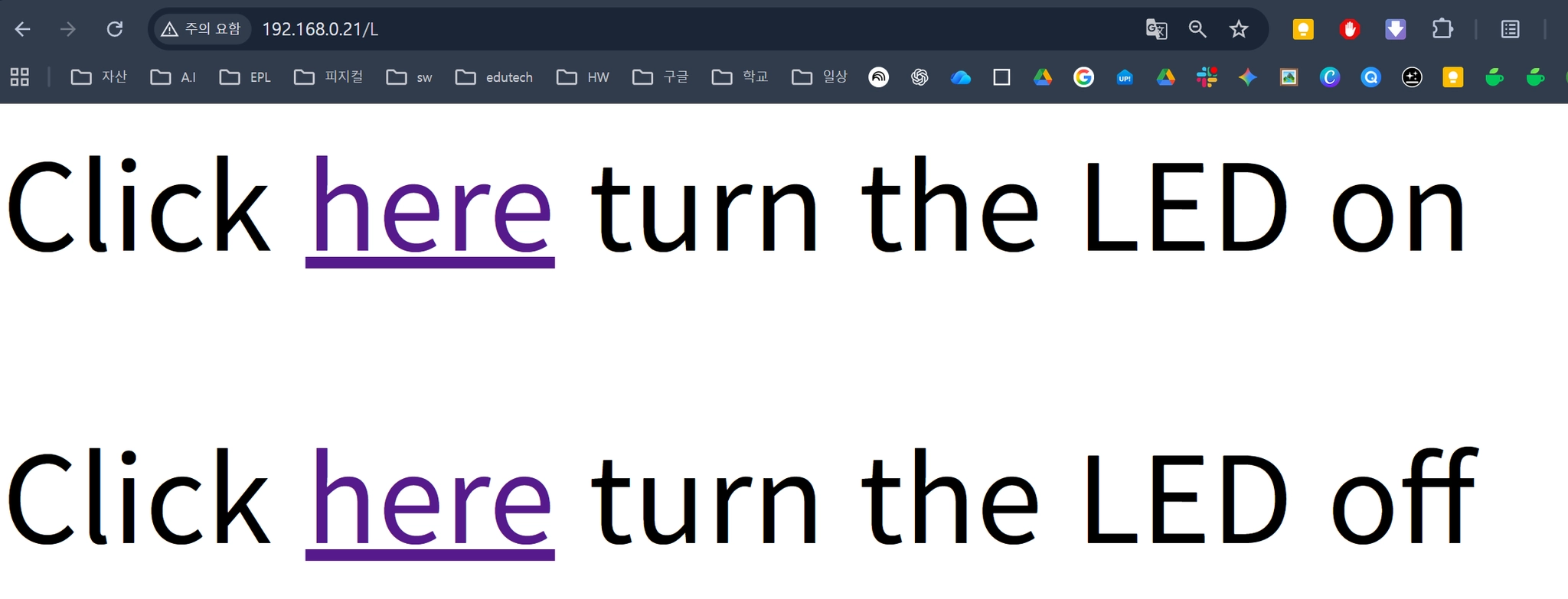
client.print("<p style=\"font-size:7vw;\">Click <a href=\"/H\">here</a> turn the LED on<br></p>");
client.print("<p style=\"font-size:7vw;\">Click <a href=\"/L\">here</a> turn the LED off<br></p>");
// The HTTP response ends with another blank line:
client.println();
// break out of the while loop:
break;
} else { // if you got a newline, then clear currentLine:
currentLine = "";
}
} else if (c != '\r') { // if you got anything else but a carriage return character,
currentLine += c; // add it to the end of the currentLine
}
// Check to see if the client request was "GET /H" or "GET /L":
if (currentLine.endsWith("GET /H")) {
digitalWrite(LED_BUILTIN, HIGH); // GET /H turns the LED on
}
if (currentLine.endsWith("GET /L")) {
digitalWrite(LED_BUILTIN, LOW); // GET /L turns the LED off
}
}
}
// close the connection:
client.stop();
Serial.println("client disconnected");
}
}
void printWifiStatus() {
// print the SSID of the network you're attached to:
Serial.print("SSID: ");
Serial.println(WiFi.SSID());
// print your board's IP address:
IPAddress ip = WiFi.localIP();
Serial.print("IP Address: ");
Serial.println(ip);
// print the received signal strength:
long rssi = WiFi.RSSI();
Serial.print("signal strength (RSSI):");
Serial.print(rssi);
Serial.println(" dBm");
// print where to go in a browser:
Serial.print("To see this page in action, open a browser to http://");
Serial.println(ip);
}
Arduino
복사
•
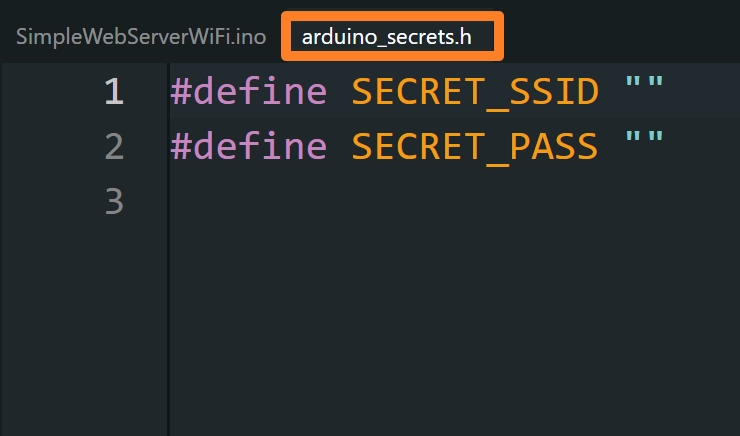
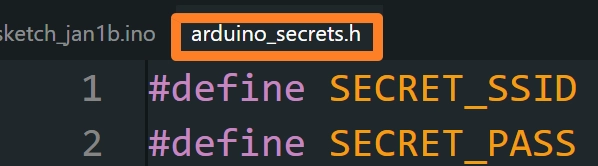
접속할 WiFi 정보를 ‘arduino_secrets.h 헤더파일에 적어준 뒤 예제 코드를 업로드하고, 시리얼 모니터 실행하기
•
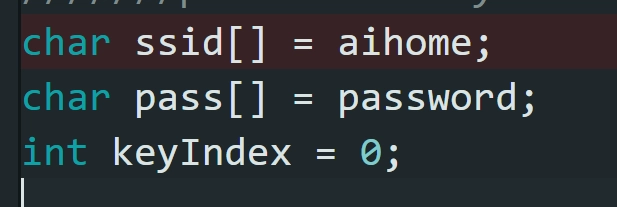
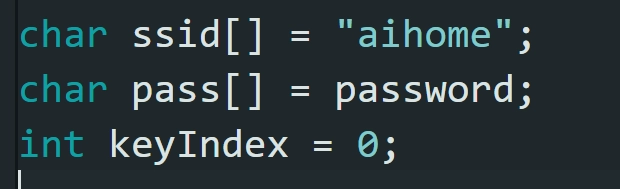
주의 아래 처럼 simpleWebServerWifi.ino를 수정하는 것이 X
•
이상없이 실행되었다면 시리얼 모니터창에 다음과 같이 아두이노의 IP 주소가 출력되어야 함
◦
통신속도도 일치되지 않는다면 오류가 발생

•
여기서 나온 IP주소를 웹브라우저에 적어 접속하기
•
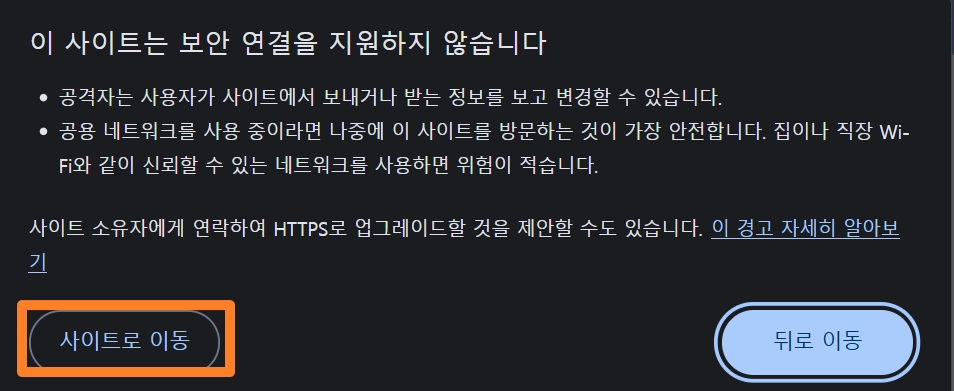
아래처럼 보안연결에 대한 팝업창이 떠도 개의치 말고 접속
•
이제 코드를 다시 분석해보기
2. 서보모터 원격제어하기
2-1. 포인트2가지
•
웹 화면에서 서보모터의 각도를 슬라이드 형태로 제어할 수 있도록 바이브 코딩
•
현재 서보모터의 각도를 읽어서 화면에 출력할 수 있도록 바이크 코딩
2-2.웹화면 변경하기(클로드3 활용)
•
기존의 ‘arduino_secrets.h 헤더파일도 그대로 활용
#include "WiFiS3.h"
#include <Servo.h>
#include "arduino_secrets.h"
///////please enter your sensitive data in the Secret tab/arduino_secrets.h
char ssid[] = SECRET_SSID; // your network SSID (name)
char pass[] = SECRET_PASS; // your network password
int keyIndex = 0;
// Servo setup
Servo myServo;
int servoPin = 10;
int currentAngle = 90; // 초기 각도 90도
int status = WL_IDLE_STATUS;
WiFiServer server(80);
void setup() {
Serial.begin(9600);
// 서보모터 초기화
myServo.attach(servoPin);
myServo.write(currentAngle); // 초기 위치로 이동
// WiFi 모듈 체크
if (WiFi.status() == WL_NO_MODULE) {
Serial.println("Communication with WiFi module failed!");
while (true);
}
String fv = WiFi.firmwareVersion();
if (fv < WIFI_FIRMWARE_LATEST_VERSION) {
Serial.println("Please upgrade the firmware");
}
// WiFi 연결
while (status != WL_CONNECTED) {
Serial.print("Attempting to connect to Network named: ");
Serial.println(ssid);
status = WiFi.begin(ssid, pass);
delay(10000);
}
server.begin();
printWifiStatus();
}
void loop() {
WiFiClient client = server.available();
if (client) {
Serial.println("new client");
String currentLine = "";
while (client.connected()) {
if (client.available()) {
char c = client.read();
Serial.write(c);
if (c == '\n') {
if (currentLine.length() == 0) {
// HTTP 응답 시작
client.println("HTTP/1.1 200 OK");
client.println("Content-type:text/html");
client.println("Connection: close");
client.println();
// HTML 페이지 생성
client.println("<!DOCTYPE HTML>");
client.println("<html>");
client.println("<head>");
client.println("<meta charset='UTF-8'>");
client.println("<meta name='viewport' content='width=device-width, initial-scale=1'>");
client.println("<title>Servo Control</title>");
client.println("<style>");
client.println("body { font-family: Arial; text-align: center; margin: 20px; background: #f0f0f0; }");
client.println(".container { max-width: 600px; margin: 0 auto; background: white; padding: 30px; border-radius: 10px; box-shadow: 0 2px 10px rgba(0,0,0,0.1); }");
client.println("h1 { color: #333; }");
client.println(".slider-container { margin: 30px 0; }");
client.println(".slider { width: 100%; height: 15px; border-radius: 5px; background: #d3d3d3; outline: none; }");
client.println(".slider::-webkit-slider-thumb { width: 25px; height: 25px; border-radius: 50%; background: #4CAF50; cursor: pointer; }");
client.println(".angle-display { font-size: 48px; font-weight: bold; color: #4CAF50; margin: 20px 0; }");
client.println(".label { font-size: 18px; color: #666; margin: 10px 0; }");
client.println(".footer { margin-top: 40px; font-size: 12px; color: #999; }");
client.println(".footer a { color: #4CAF50; text-decoration: none; }");
client.println("</style>");
client.println("</head>");
client.println("<body>");
client.println("<div class='container'>");
client.println("<h1>🔧 Servo Motor Control</h1>");
// 현재 각도 표시
client.println("<div class='label'>Current Angle</div>");
client.print("<div class='angle-display' id='angleValue'>");
client.print(currentAngle);
client.println("°</div>");
// 슬라이더
client.println("<div class='slider-container'>");
client.println("<div class='label'>Adjust Angle (0° - 180°)</div>");
client.print("<input type='range' min='0' max='180' value='");
client.print(currentAngle);
client.println("' class='slider' id='servoSlider' onchange='updateServo(this.value)'>");
client.println("</div>");
// JavaScript
client.println("<script>");
client.println("function updateServo(angle) {");
client.println(" document.getElementById('angleValue').innerHTML = angle + '°';");
client.println(" var xhr = new XMLHttpRequest();");
client.println(" xhr.open('GET', '/servo?angle=' + angle, true);");
client.println(" xhr.send();");
client.println("}");
client.println("</script>");
// 저작권 표시
client.println("<div class='footer'>");
client.println("© Made By <a href='https://yangphago.oopy.io/' target='_blank'>Yangphago</a>(feat.Claude)");
client.println("</div>");
client.println("</div>");
client.println("</body>");
client.println("</html>");
client.println();
break;
} else {
currentLine = "";
}
} else if (c != '\r') {
currentLine += c;
}
// 서보모터 각도 제어 요청 처리
if (currentLine.indexOf("GET /servo?angle=") >= 0) {
int angleStart = currentLine.indexOf("angle=") + 6;
int angleEnd = currentLine.indexOf(" ", angleStart);
String angleStr = currentLine.substring(angleStart, angleEnd);
int newAngle = angleStr.toInt();
// 각도 범위 제한 (0-180)
if (newAngle >= 0 && newAngle <= 180) {
currentAngle = newAngle;
myServo.write(currentAngle);
Serial.print("Servo moved to: ");
Serial.print(currentAngle);
Serial.println("°");
}
}
}
}
client.stop();
Serial.println("client disconnected");
}
}
void printWifiStatus() {
Serial.print("SSID: ");
Serial.println(WiFi.SSID());
IPAddress ip = WiFi.localIP();
Serial.print("IP Address: ");
Serial.println(ip);
long rssi = WiFi.RSSI();
Serial.print("signal strength (RSSI): ");
Serial.print(rssi);
Serial.println(" dBm");
Serial.print("To control the servo, open a browser to http://");
Serial.println(ip);
}
Arduino
복사
•
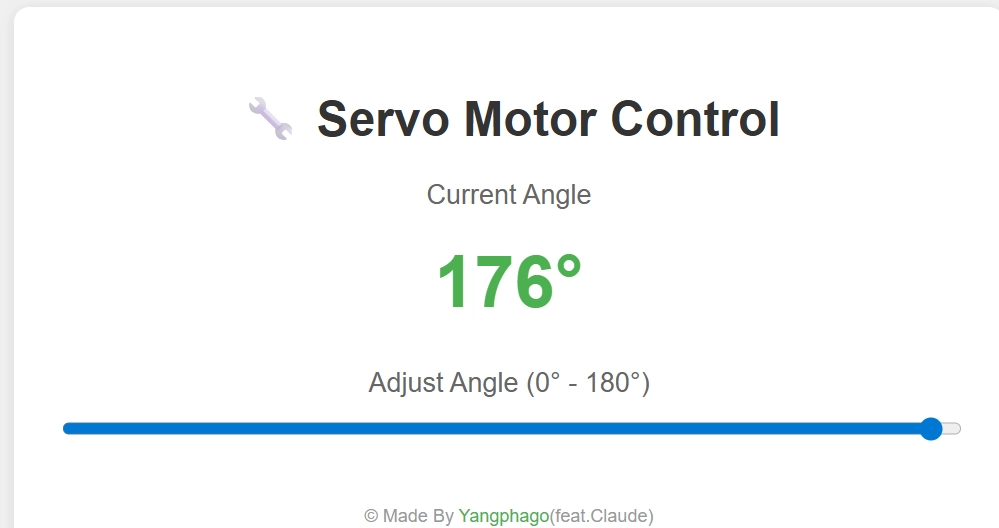
대략 이런 웹화면에서 현재 서보모터의 각도와 각도지정 가능
•
스마트폰에서도 동일 wifi에 접속한다면 ‘동시제어’가능
•
 그러나 2개의 디바이스에서 아두이노에 접속한 것이므로 동일 제어는 가능하나 측정되는 각도에는 약간 차이가 발생함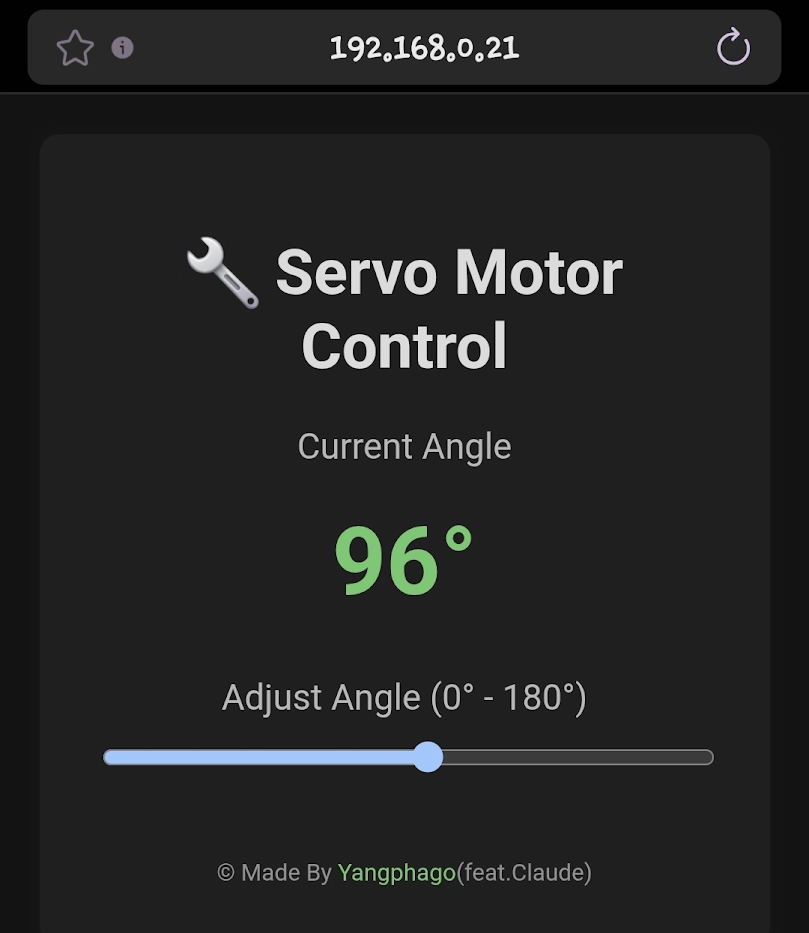
3.wifi웹서버 예제 응용_가변저항값 출력
#include "WiFiS3.h"
#include "arduino_secrets.h"
///////please enter your sensitive data in the Secret tab/arduino_secrets.h
char ssid[] = SECRET_SSID; // your network SSID (name)
char pass[] = SECRET_PASS; // your network password (use for WPA, or use as key for WEP)
int keyIndex = 0; // your network key index number (needed only for WEP)
int status = WL_IDLE_STATUS;
WiFiServer server(80);
void setup() {
//Initialize serial and wait for port to open:
Serial.begin(9600);
while (!Serial) {
; // wait for serial port to connect. Needed for native USB port only
}
// check for the WiFi module:
if (WiFi.status() == WL_NO_MODULE) {
Serial.println("Communication with WiFi module failed!");
// don't continue
while (true);
}
String fv = WiFi.firmwareVersion();
if (fv < WIFI_FIRMWARE_LATEST_VERSION) {
Serial.println("Please upgrade the firmware");
}
// attempt to connect to WiFi network:
while (status != WL_CONNECTED) {
Serial.print("Attempting to connect to SSID: ");
Serial.println(ssid);
// Connect to WPA/WPA2 network. Change this line if using open or WEP network:
status = WiFi.begin(ssid, pass);
// wait 10 seconds for connection:
delay(10000);
}
server.begin();
// you're connected now, so print out the status:
printWifiStatus();
}
void loop() {
// listen for incoming clients
WiFiClient client = server.available();
if (client) {
Serial.println("new client");
// an HTTP request ends with a blank line
boolean currentLineIsBlank = true;
while (client.connected()) {
if (client.available()) {
char c = client.read();
Serial.write(c);
// if you've gotten to the end of the line (received a newline
// character) and the line is blank, the HTTP request has ended,
// so you can send a reply
if (c == '\n' && currentLineIsBlank) {
// send a standard HTTP response header
client.println("HTTP/1.1 200 OK");
client.println("Content-Type: text/html");
client.println("Connection: close"); // the connection will be closed after completion of the response
client.println("Refresh: 5"); // refresh the page automatically every 5 sec
client.println();
client.println("<!DOCTYPE HTML>");
client.println("<html>");
// output the value of each analog input pin
for (int analogChannel = 0; analogChannel < 6; analogChannel++) {
int sensorReading = analogRead(analogChannel);
client.print("analog input ");
client.print(analogChannel);
client.print(" is ");
client.print(sensorReading);
client.println("<br />");
}
client.println("</html>");
break;
}
if (c == '\n') {
// you're starting a new line
currentLineIsBlank = true;
} else if (c != '\r') {
// you've gotten a character on the current line
currentLineIsBlank = false;
}
}
}
// give the web browser time to receive the data
delay(1);
// close the connection:
client.stop();
Serial.println("client disconnected");
}
}
void printWifiStatus() {
// print the SSID of the network you're attached to:
Serial.print("SSID: ");
Serial.println(WiFi.SSID());
// print your board's IP address:
IPAddress ip = WiFi.localIP();
Serial.print("IP Address: ");
Serial.println(ip);
// print the received signal strength:
long rssi = WiFi.RSSI();
Serial.print("signal strength (RSSI):");
Serial.print(rssi);
Serial.println(" dBm");
}
Arduino
복사
3-1. 변경 포인트2가지
•
해당 예제를 불러와 아날로그0번핀의 값만을 화면에 출력할 수 있도록 변경
•
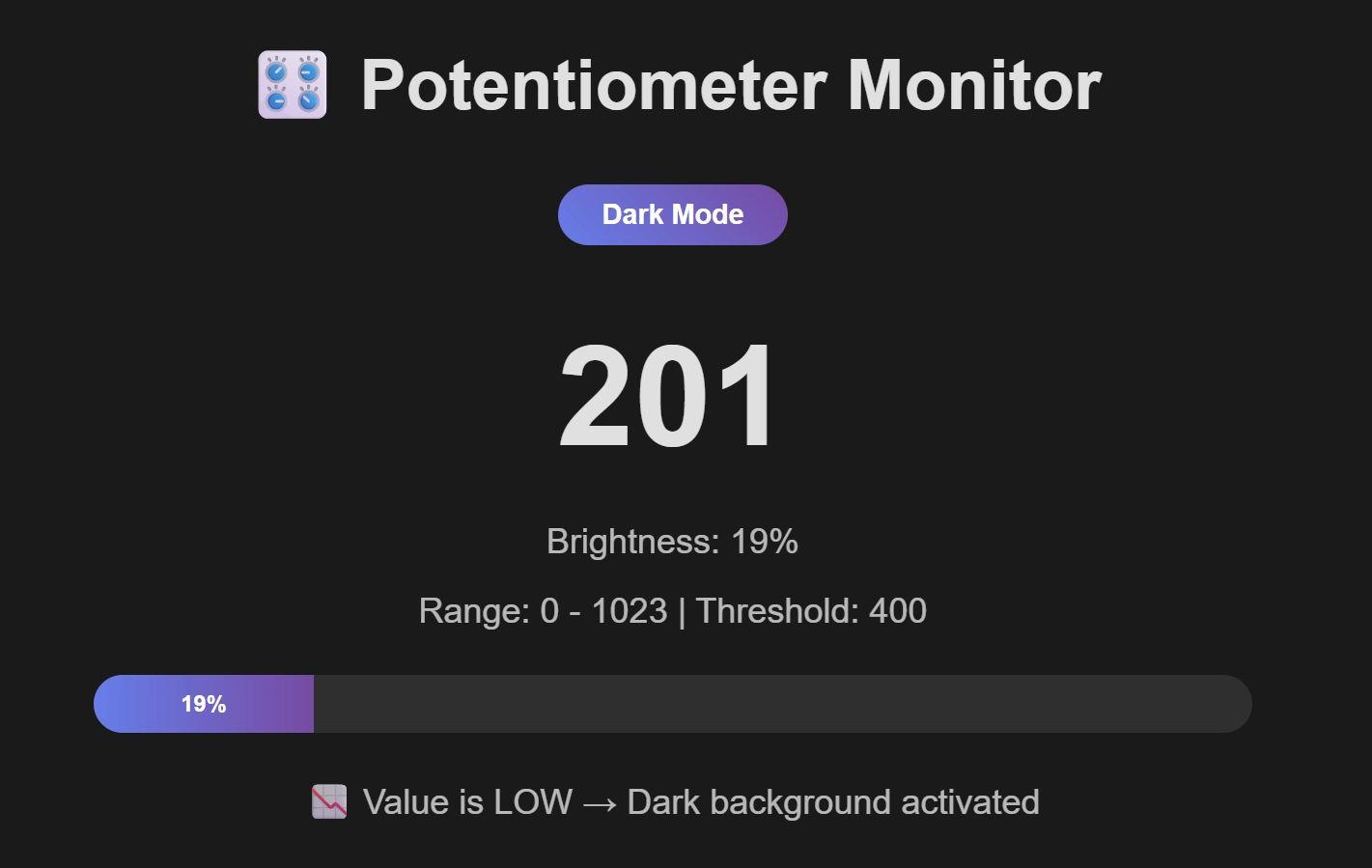
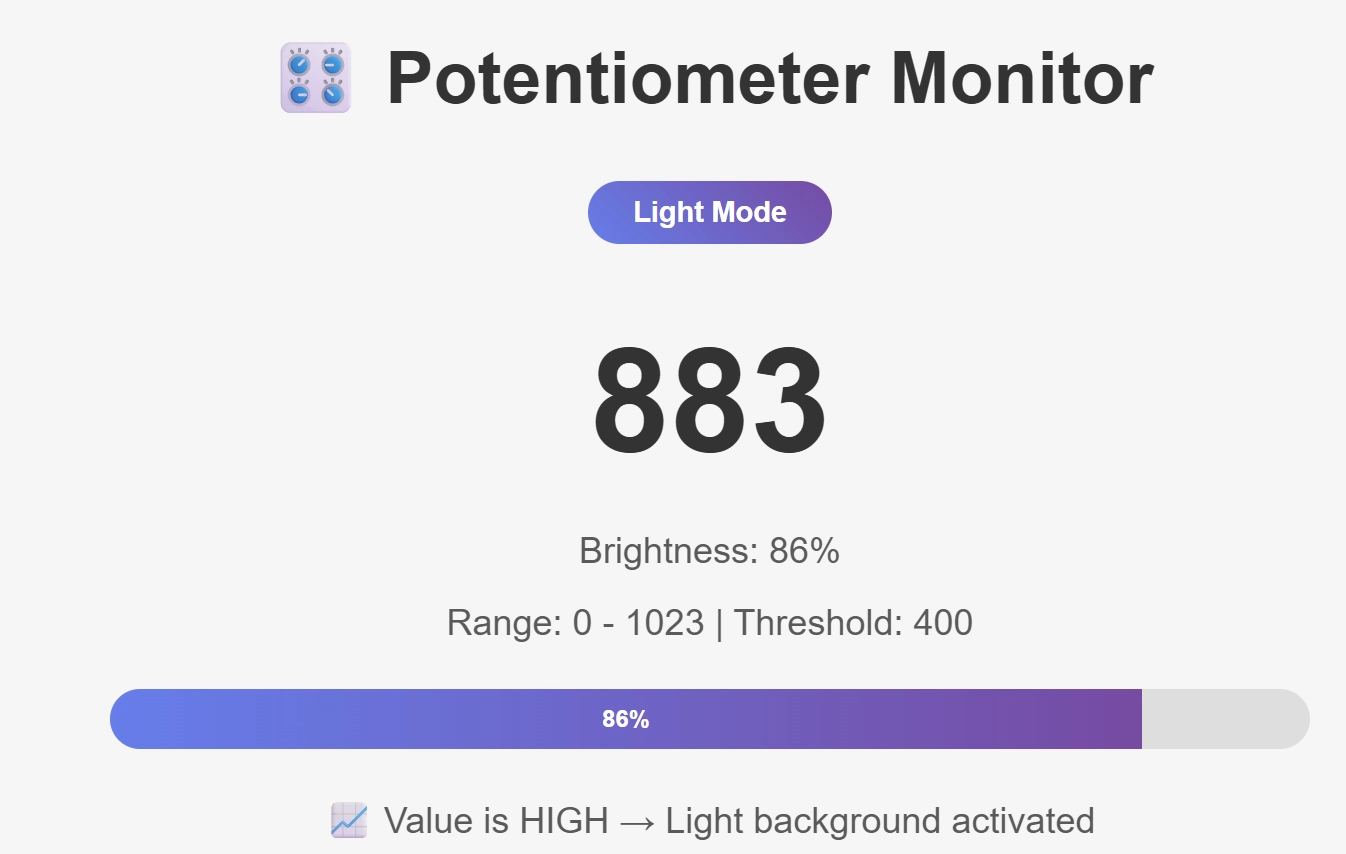
아날로그 값이 일정이하가 되면 브라우저 배경화면 색상이나 조도가 변경되도록 변경
/*
WiFi Web Server - Potentiometer Monitor
아날로그 0번 핀의 가변저항 값을 읽어서
웹 페이지에 표시하고, 값에 따라 배경 밝기를 자동 조절합니다.
Circuit:
* 가변저항(Potentiometer) 연결: A0 핀
* 가변저항 회로: 5V - 가변저항 - A0, GND
Modified by Yangphago
*/
#include "WiFiS3.h"
#include "arduino_secrets.h"
char ssid[] = SECRET_SSID;
char pass[] = SECRET_PASS;
int keyIndex = 0;
int status = WL_IDLE_STATUS;
WiFiServer server(80);
// 가변저항 설정
const int POT_PIN = A0;
const int THRESHOLD = 400; // 어두움 전환 기준값 (0~1023 범위)
void setup() {
Serial.begin(9600);
// WiFi 모듈 체크
if (WiFi.status() == WL_NO_MODULE) {
Serial.println("Communication with WiFi module failed!");
while (true);
}
String fv = WiFi.firmwareVersion();
if (fv < WIFI_FIRMWARE_LATEST_VERSION) {
Serial.println("Please upgrade the firmware");
}
// WiFi 연결
while (status != WL_CONNECTED) {
Serial.print("Attempting to connect to SSID: ");
Serial.println(ssid);
status = WiFi.begin(ssid, pass);
delay(10000);
}
server.begin();
printWifiStatus();
}
void loop() {
WiFiClient client = server.available();
if (client) {
Serial.println("new client");
boolean currentLineIsBlank = true;
while (client.connected()) {
if (client.available()) {
char c = client.read();
Serial.write(c);
if (c == '\n' && currentLineIsBlank) {
// 가변저항 값 읽기
int potValue = analogRead(POT_PIN);
// 밝기 퍼센트 계산 (0~100%)
int brightnessPercent = map(potValue, 0, 1023, 0, 100);
// 배경색 계산 (값이 낮으면 어두운 배경, 높으면 밝은 배경)
String backgroundColor;
String textColor;
String modeText;
if (potValue < THRESHOLD) {
// 다크 모드 (가변저항 값이 낮을 때)
backgroundColor = "#1a1a1a"; // 어두운 배경
textColor = "#e0e0e0"; // 밝은 글씨
modeText = "Dark Mode";
} else {
// 라이트 모드 (가변저항 값이 높을 때)
backgroundColor = "#f5f5f5"; // 밝은 배경
textColor = "#333333"; // 어두운 글씨
modeText = "Light Mode";
}
// HTTP 응답 헤더
client.println("HTTP/1.1 200 OK");
client.println("Content-Type: text/html");
client.println("Connection: close");
client.println("Refresh: 2"); // 2초마다 자동 새로고침
client.println();
// HTML 페이지
client.println("<!DOCTYPE HTML>");
client.println("<html>");
client.println("<head>");
client.println("<meta charset='UTF-8'>");
client.println("<meta name='viewport' content='width=device-width, initial-scale=1'>");
client.println("<title>Potentiometer Monitor</title>");
client.println("<style>");
client.print("body { font-family: Arial; background-color: ");
client.print(backgroundColor);
client.print("; color: ");
client.print(textColor);
client.println("; margin: 0; padding: 20px; transition: all 0.3s ease; }");
client.println(".container { max-width: 800px; margin: 0 auto; text-align: center; padding: 40px; }");
client.println("h1 { font-size: 3em; margin-bottom: 20px; }");
client.println(".value-display { font-size: 6em; font-weight: bold; margin: 30px 0; }");
client.println(".info { font-size: 1.5em; margin: 20px 0; opacity: 0.8; }");
client.println(".mode-badge { display: inline-block; padding: 10px 30px; border-radius: 25px; ");
client.println("background: linear-gradient(45deg, #667eea 0%, #764ba2 100%); color: white; ");
client.println("font-size: 1.2em; font-weight: bold; margin: 20px 0; }");
client.println(".progress-bar { width: 100%; height: 40px; background: rgba(128,128,128,0.2); ");
client.println("border-radius: 20px; overflow: hidden; margin: 30px 0; }");
client.println(".progress-fill { height: 100%; background: linear-gradient(90deg, #667eea 0%, #764ba2 100%); ");
client.println("transition: width 0.3s ease; display: flex; align-items: center; justify-content: center; ");
client.println("color: white; font-weight: bold; }");
client.println(".footer { margin-top: 60px; font-size: 0.9em; opacity: 0.6; }");
client.println(".footer a { color: #667eea; text-decoration: none; font-weight: bold; }");
client.println("</style>");
client.println("</head>");
client.println("<body>");
client.println("<div class='container'>");
// 제목
client.println("<h1>🎛️ Potentiometer Monitor</h1>");
// 현재 모드 표시
client.print("<div class='mode-badge'>");
client.print(modeText);
client.println("</div>");
// 가변저항 값 표시
client.print("<div class='value-display'>");
client.print(potValue);
client.println("</div>");
// 추가 정보
client.print("<div class='info'>Brightness: ");
client.print(brightnessPercent);
client.println("%</div>");
client.print("<div class='info'>Range: 0 - 1023 | Threshold: ");
client.print(THRESHOLD);
client.println("</div>");
// 프로그레스 바
client.println("<div class='progress-bar'>");
client.print("<div class='progress-fill' style='width: ");
client.print(brightnessPercent);
client.print("%;'>");
client.print(brightnessPercent);
client.println("%</div>");
client.println("</div>");
// 상태 안내
client.println("<div class='info'>");
if (potValue < THRESHOLD) {
client.print("📉 Value is LOW → Dark background activated");
} else {
client.print("📈 Value is HIGH → Light background activated");
}
client.println("</div>");
// 저작권 표시
client.println("<div class='footer'>");
client.println("© Made By <a href='https://yangphago.oopy.io/' target='_blank'>Yangphago</a>(feat.Claude)");
client.println("</div>");
client.println("</div>");
client.println("</body>");
client.println("</html>");
// 시리얼 모니터에도 출력
Serial.print("Potentiometer Value: ");
Serial.print(potValue);
Serial.print(" (");
Serial.print(brightnessPercent);
Serial.print("%) - Mode: ");
Serial.println(modeText);
break;
}
if (c == '\n') {
currentLineIsBlank = true;
} else if (c != '\r') {
currentLineIsBlank = false;
}
}
}
delay(1);
client.stop();
Serial.println("client disconnected");
}
}
void printWifiStatus() {
Serial.print("SSID: ");
Serial.println(WiFi.SSID());
IPAddress ip = WiFi.localIP();
Serial.print("IP Address: ");
Serial.println(ip);
long rssi = WiFi.RSSI();
Serial.print("signal strength (RSSI): ");
Serial.print(rssi);
Serial.println(" dBm");
Serial.print("Open browser to http://");
Serial.println(ip);
}
Arduino
복사
3-2.비교해보기
•
테스트 결과 중간중간 끊김이 발생하면 새로운 브라우저화면을 여는 것이 필요함
3-3.아두이노 웹서버 방식의 치명적 문제점?
•
상황: 집에 있는 아두이노를 학교에서 제어하고 싶다
•
•
결과:  , 이유: 다른 네트워크라서 접속 불가
, 이유: 다른 네트워크라서 접속 불가•
VPN을 사용해 같은 네트워크를 사용하는 것처럼 속이는 방법이 있다고는 하는데.. 설정하다 GG
그냥 bylink방식을 쓰자!!