


목차(클릭하세요)

전체 흐름: 원본파일 넣기  매크로 실행하여 원본파일 숨기기 매크로 전체 비밀번호 설정
매크로 실행하여 원본파일 숨기기 매크로 전체 비밀번호 설정 구글시트는 원본시트를 숨긴상태에서 공유불가능 답은 엑셀VBA
 구글시트는 원본시트를 어찌저찌 숨김채 공유하였더라도, 동시 다발적으로 접속하여 하나의 셀에서 조회하는 것은 불가능
 웹페이지의 DB를 불러오는 형태가 아니라면 VBA사용이 가장 간편
1. 첨부파일 다운 후 원본자료 입력 후 기본셋팅
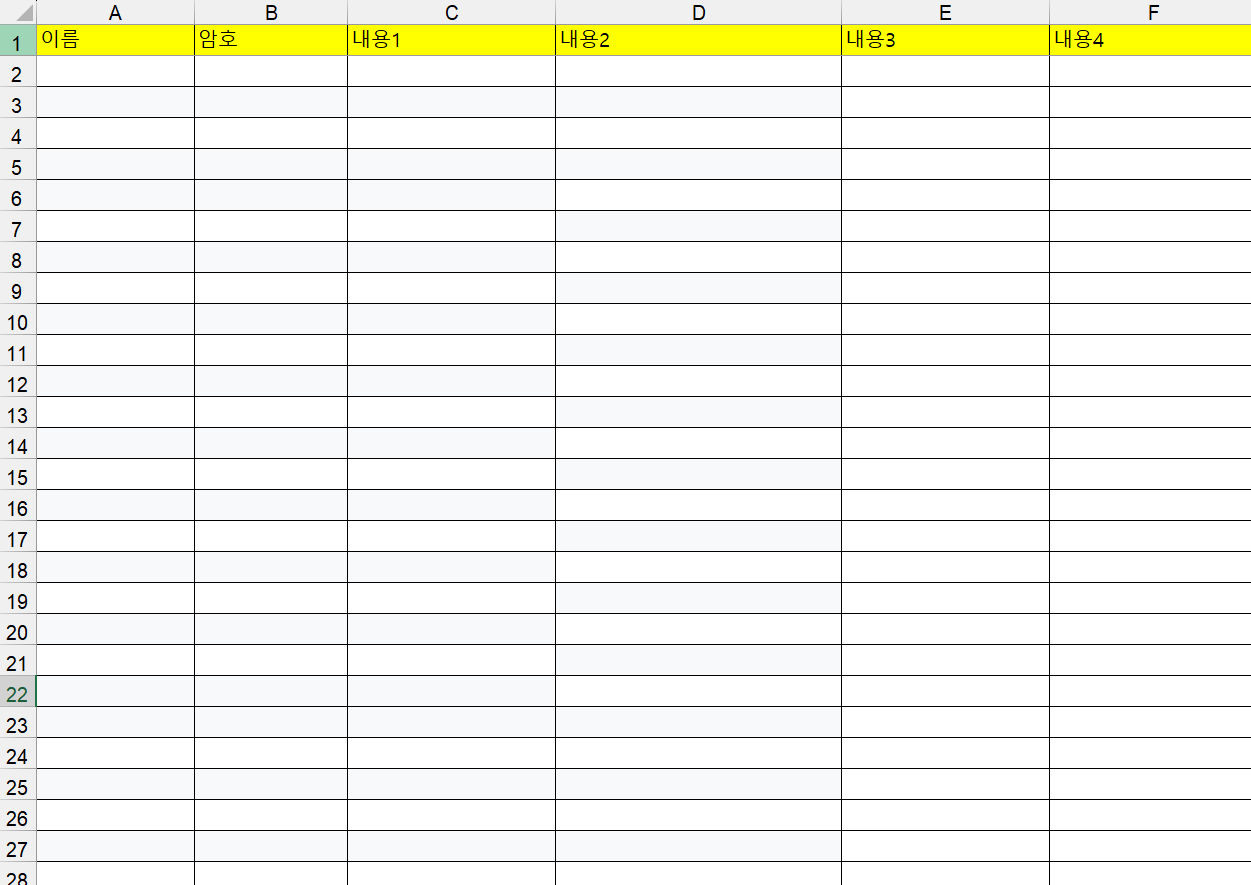
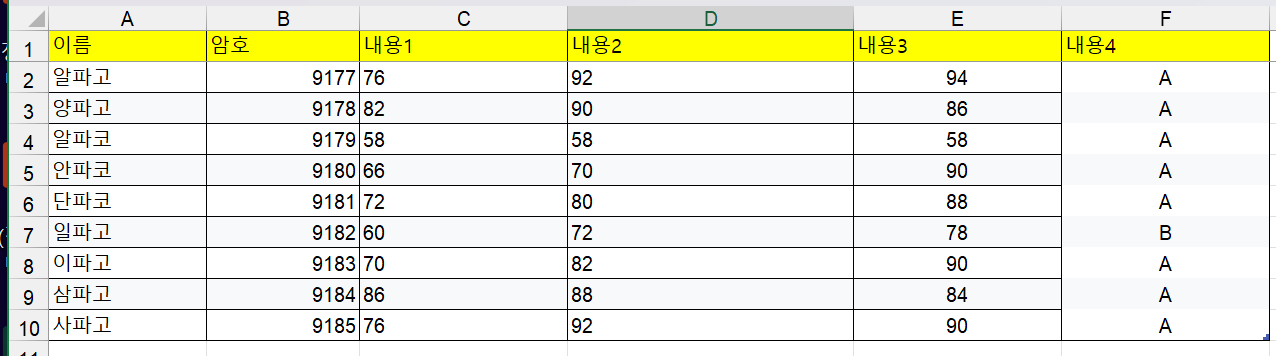
1-1. 첨부파일의 원본보호 탭에 조회할 전체 원본자표 입력
[입력 전]
[입력 후]
1-2. 조회기능 VBA
•
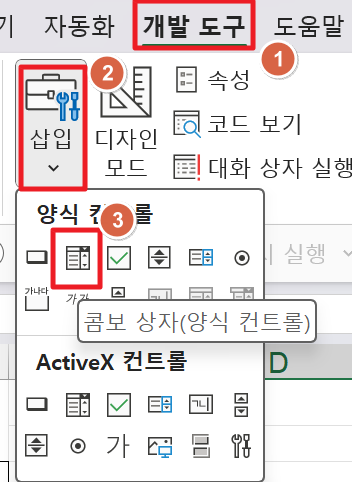
데이터-유효성검사에 있는 콤보박스로는 VBA작동과 매칭이 어려우므로 개발도구 안에 있는 콤보박스 기능을 활용
•
다음 순서로 콤보상자를 드래그
•
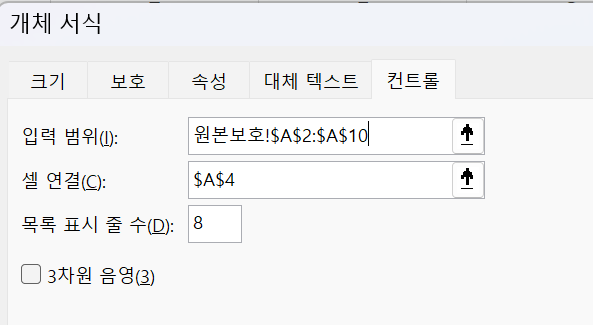
마우스 우클릭 후 컨트롤 서식 클릭
•
입력범위는 원본보호 시트에서 이름에 해당되는 부분을 드래그해서 선택
•
그럼 해당 VBA를 실행했을 때 설문 응답자의 이름 숫자만큼 콤보박스로 만들어짐
•
주의: 원본보호 시트를 수정했다면 해당 VBA도 다시한 번 실행해야 함
•
2-1. 콤보박스 만들기 VBA
•
VBA편집기 실행: 개발도구-VisualBasic 으로 실행하거나 또는 Art+F11키로 실행
1.
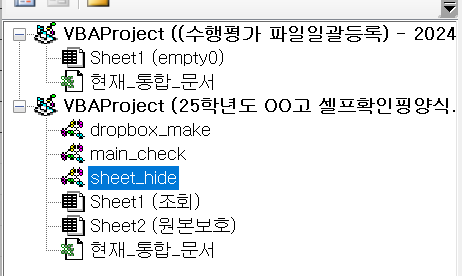
현재 만들어진 모듈은 총 3개
•
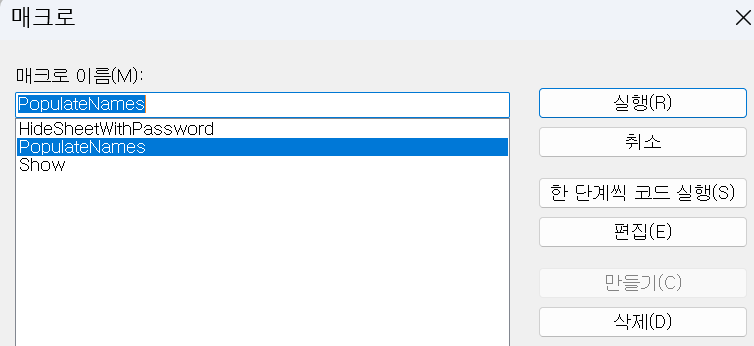
Drop_make 모듈의 PopulateNames프로시저 실행시키기
Option Explicit
'---------------------------------------------
' [1] 원본보호 시트의 이름 목록을 조회 시트의 폼 드롭다운에 채우기
'---------------------------------------------
Sub PopulateNames()
Dim wsSource As Worksheet, wsLookup As Worksheet
Dim lastRow As Long, i As Long
Dim namesArr As Variant
Dim resultArr() As String, count As Long
Set wsSource = ThisWorkbook.Sheets("원본보호")
Set wsLookup = ThisWorkbook.Sheets("조회")
lastRow = wsSource.Cells(wsSource.Rows.count, "A").End(xlUp).Row
If lastRow < 2 Then Exit Sub
namesArr = wsSource.Range("A2:A" & lastRow).Value
count = 0
For i = 1 To UBound(namesArr, 1)
If Trim(namesArr(i, 1)) <> "" Then
count = count + 1
ReDim Preserve resultArr(1 To count)
resultArr(count) = namesArr(i, 1)
End If
Next i
' 폼 드롭다운의 이름이 "드롭다운 5"임
wsLookup.DropDowns("드롭다운 5").List = resultArr
End Sub
BASIC
복사
•
매크로 실행 결과
•
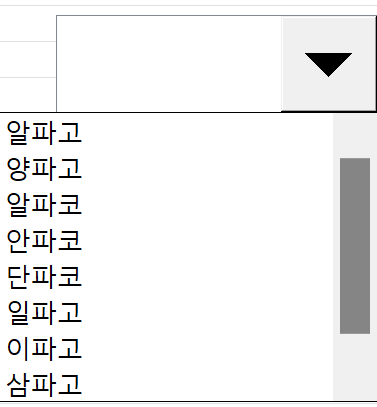
성공적으로 진행되고 있다면 콤보박스를 눌렀을 때 아래 그림처럼 목록이 보여야 함
2-2.입력 후 원본파일 숨기기를 위한 VBA실행
•
Sheet_hide 모듈을 실행
1.
실행전 시트 숨기기/해제를 위한 암호를 정확하게 설정하기
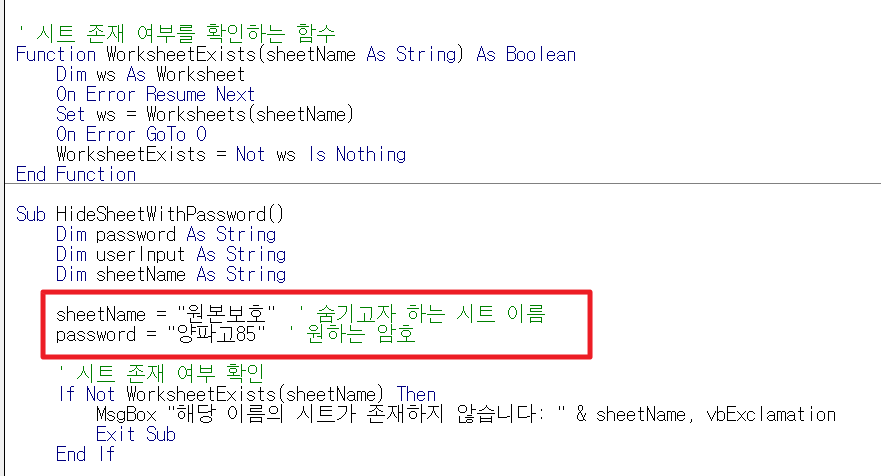
b. Sheet_hide 모듈 안에 있는 HideSheetwithPassword프로시저를 실행하면 됨
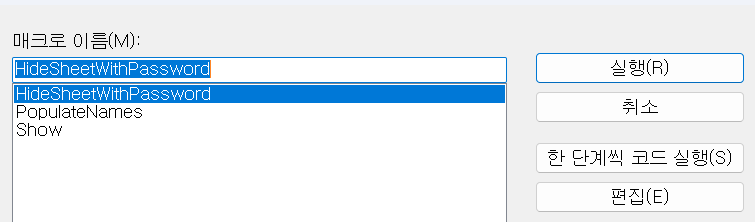
Option Explicit
' 시트 존재 여부를 확인하는 함수
Function WorksheetExists(sheetName As String) As Boolean
Dim ws As Worksheet
On Error Resume Next
Set ws = Worksheets(sheetName)
On Error GoTo 0
WorksheetExists = Not ws Is Nothing
End Function
Sub HideSheetWithPassword()
Dim password As String
Dim userInput As String
Dim sheetName As String
sheetName = "원본보호" ' 숨기고자 하는 시트 이름
password = "양파고85" ' 원하는 암호
' 시트 존재 여부 확인
If Not WorksheetExists(sheetName) Then
MsgBox "해당 이름의 시트가 존재하지 않습니다: " & sheetName, vbExclamation
Exit Sub
End If
' 시트를 아주 숨김(xlVeryHidden)
Worksheets(sheetName).Visible = xlVeryHidden
' 사용자에게 암호 입력 요청
userInput = InputBox("숨기기 해제를 위해 암호를 입력하세요:", "암호 입력")
' 암호 비교
If userInput = password Then
Worksheets(sheetName).Visible = xlSheetVisible
MsgBox "시트가 보이게 되었습니다.", vbInformation
Else
MsgBox "잘못된 암호입니다.", vbCritical
End If
End Sub
BASIC
복사
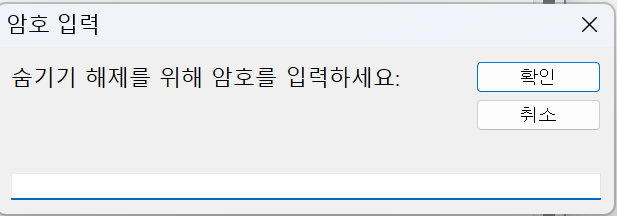
1. 시트가 숨겨졌고, 해제를 위한 암호입력창이 나오면 성공적임
•
시트를 숨겨놓아야 하므로 취소버튼 클릭
2. 버튼의 조회기능 만들기 VBA 실행
2-1. 도형하나 만들기
•
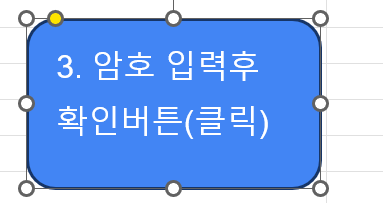
삽입-도형을 통해 원하는 도형하나를 넣고, 텍스트 입력
2-2. 도형에 매크로 기능 연결
•
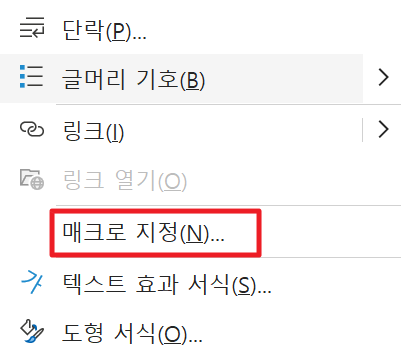
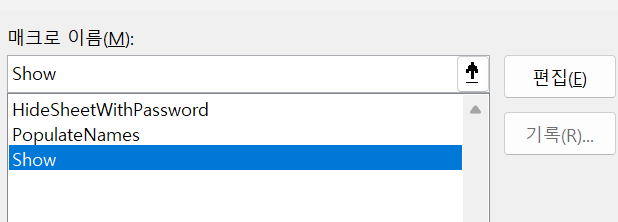
해당 도형을 우클릭한 후, 매크로 지정
•
우리의 핵심 매크로인 Show 프로시저 선택하기
Option Explicit
'---------------------------------------------
' [2] 조회 시트에서 선택된 이름과 암호에 맞는 행 번호(원본보호 시트의 실제 행 번호)를 반환
' 일치하는 행이 없으면 -1 반환
'---------------------------------------------
Function GetMatchingRow() As Long
Dim wsSource As Worksheet, wsLookup As Worksheet
Dim selectedName As String, enteredPassword As String
Dim lastRow As Long, i As Long
Dim dd As DropDown
Set wsSource = ThisWorkbook.Sheets("원본보호")
Set wsLookup = ThisWorkbook.Sheets("조회")
' 폼 드롭다운 "드롭다운 5"에서 선택된 항목 읽기
Set dd = wsLookup.DropDowns("드롭다운 5")
If dd.ListIndex > 0 Then
selectedName = dd.List(dd.ListIndex)
Else
selectedName = ""
End If
enteredPassword = wsLookup.Range("B4").Value
If selectedName = "" Or enteredPassword = "" Then
GetMatchingRow = -1
Exit Function
End If
lastRow = wsSource.Cells(wsSource.Rows.count, "A").End(xlUp).Row
For i = 2 To lastRow
If wsSource.Cells(i, "A").Value = selectedName Then
If wsSource.Cells(i, "B").Value = enteredPassword Then
GetMatchingRow = i ' 실제 행 번호
Exit Function
End If
Exit For
End If
Next i
GetMatchingRow = -1
End Function
'---------------------------------------------
' [3] 조회 시트에서 이름과 암호가 일치하면, 원본보호 시트의 해당 학생 데이터를
' "조회" 시트의 C6 셀부터 (헤더는 C6, 데이터는 C7)에 표시하는 매크로
' (암호와 순번 열은 제외)
'---------------------------------------------
Sub Show()
Dim wsSource As Worksheet, wsLookup As Worksheet
Dim matchingRow As Long
Dim lastCol As Long, i As Long, count As Long
Dim headerArr As Variant, rowArr As Variant
Dim dataHeaders() As String, dataValues() As Variant
Set wsSource = ThisWorkbook.Sheets("원본보호")
Set wsLookup = ThisWorkbook.Sheets("조회")
Dim dd As DropDown
Dim selectedName As String
Set dd = wsLookup.DropDowns("드롭다운 5")
If dd.ListIndex > 0 Then
selectedName = dd.List(dd.ListIndex)
Else
MsgBox "이름을 선택하세요.", vbExclamation
Exit Sub
End If
If wsLookup.Range("B4").Value = "" Then
MsgBox "암호를 입력하세요.", vbExclamation
Exit Sub
End If
matchingRow = GetMatchingRow()
If matchingRow = -1 Then
MsgBox "인증 실패: 이름 또는 암호가 일치하지 않습니다.", vbCritical
Exit Sub
End If
lastCol = wsSource.Cells(1, wsSource.Columns.count).End(xlToLeft).Column
headerArr = wsSource.Range(wsSource.Cells(1, 1), wsSource.Cells(1, lastCol)).Value ' 1 x n 배열
rowArr = wsSource.Range(wsSource.Cells(matchingRow, 1), wsSource.Cells(matchingRow, lastCol)).Value ' 1 x n 배열
count = 0
For i = 1 To lastCol
' "암호"와 "순번" 열 제외 (대소문자 정확히 일치)
If wsSource.Cells(1, i).Value <> "암호" And wsSource.Cells(1, i).Value <> "순번" Then
count = count + 1
ReDim Preserve dataHeaders(1 To count)
ReDim Preserve dataValues(1 To count)
dataHeaders(count) = headerArr(1, i)
dataValues(count) = rowArr(1, i)
End If
Next i
' "조회" 시트의 C6 셀부터 헤더, C7 셀부터 데이터를 표시
wsLookup.Range("C6").Resize(1, count).Value = dataHeaders
wsLookup.Range("C7").Resize(1, count).Value = dataValues
MsgBox "데이터가 조회되었습니다.", vbInformation
End Sub
'---------------------------------------------
' [4] Workbook_Open 이벤트 (ThisWorkbook 모듈에 넣을 코드)
'---------------------------------------------
'Private Sub Workbook_Open()
' Call PopulateNames
'End Sub
BASIC
복사
3. 매크로 보호
•
정상적으로 이름과 암호를 입력 후 파란색 버튼을 누르면 개별조회 시스템이 정상작동하게 됨
3-1. 매크로 보호는 왜 하는지?
•
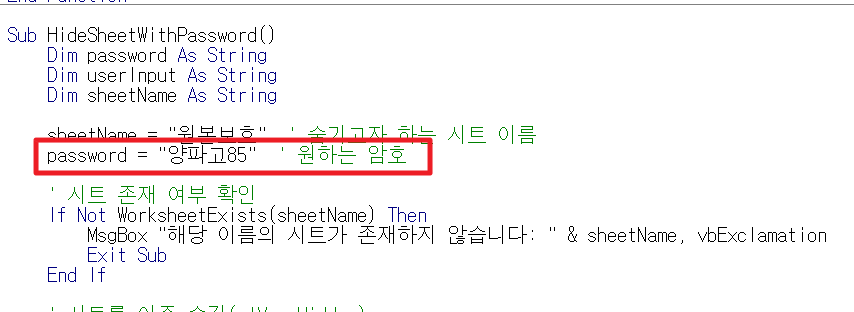
현재 매크로 중 원본 시트를 숨기는 VBA에 접근하면 바로 시트 숨김/숨김해제 비밀번호가 노출되어 있음
•
이런 사태를 방지 하기 위해 매크로 자체에 접근할 수 없도록 매크로를 보호할 수 있음
3-2. 매크로 보호 셋팅
•
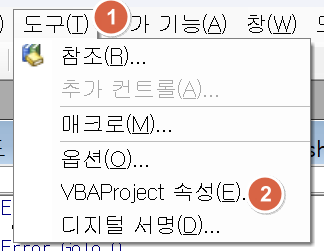
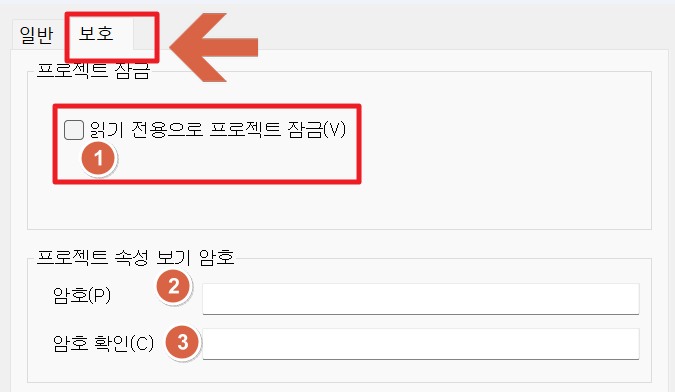
도구- VBA project 속성 클릭 후 보호클릭
•
읽기전용으로 프로젝트 잠금에 반드시 체크
 여기까지 왔다면 배포준비 완료! 이제 배포를 시작하지!!
3-3. 매크로 보호 해제
동일하게 도구- VBA project 속성 클릭
[참고 사이트]